WordPress SMS Appointment Reminders — A Complete Guide for Service Businesses (2026)
If you run a WordPress site for a service business — a salon, a dental practice, a yoga studio, a one-chair photography setup — appointment SMS is quietly the single highest-ROI piece of your booking stack. A customer who gets a well-timed SMS the day before a visit shows up. A customer who gets only an email they stopped checking a week ago often does not.
This guide walks through everything a service business needs to run SMS appointment reminders on WordPress in 2026: why the channel works, which messages to send and when, what compliance looks like without the legal jargon, how six common industries use SMS day-to-day, how to set the whole thing up inside Bookly, what it actually costs, and what to do when something goes wrong.
It is a long read deliberately. SMS is one of those topics where every corner — consent, timing, phrasing, delivery — matters. Jump to any section with the links below.
On this page
- Why SMS reminders matter for service businesses
- The five SMS use cases every service business needs
- SMS compliance basics — the short version
- SMS by industry — six verticals, one message each
- How to set up SMS in WordPress with Bookly
- What SMS actually costs
- Common troubleshooting
- Start sending SMS today
- FAQ
Why SMS reminders matter for service businesses
Service businesses run on time. A missed 45-minute colour appointment at a salon, a 30-minute cleaning at a dental practice, a one-hour fitness class — each one is a slot the business cannot refill the same day. Across the service economy, no-shows are consistently reported in the 15-30% range, which translates to a chunk of weekly revenue that quietly evaporates without the owner ever seeing the lost booking in a report.
SMS reminders put a dent in that number because SMS is a channel the customer actually checks. Industry carrier data regularly puts SMS open rates in the ninety-percent range, usually within minutes of delivery, versus roughly 20-30% for a cold marketing email that lands in a Promotions tab the recipient opens on Thursday evening. The exact percentages vary by audience and country, but the direction is not disputed: when a message needs to be read today, SMS wins the attention contest.
For WordPress service businesses specifically, there is a second reason SMS beats email. Most booking plugins can send a notification. Far fewer let the owner customise which message goes out when, per service, with a template that reads like a human wrote it. The reminder your customers actually act on is the one that answers a specific question — what to bring, where to park, how to prepare — not a generic "Your appointment is at 14:00" that could have been copy-pasted from any calendar app.
A properly configured SMS flow in WordPress does three things at once:
- Cuts no-shows by nudging the customer in the channel they check within minutes of their phone buzzing.
- Reduces pre-arrival questions by answering the one or two things customers always ask the night before.
- Builds trust at zero marginal effort — once the templates are set, every booking triggers them automatically.
The rest of this guide shows how to assemble that flow without turning your WordPress admin into a second full-time job.
The five SMS use cases every service business needs
There are five appointment SMS use cases. Three are mandatory for any serious service business; two are high-leverage additions that start paying back the moment they are enabled.
1. Confirmation SMS — sent immediately after booking
The confirmation SMS is the receipt. It fires the moment the customer finishes booking on your WordPress site and tells them two things: the appointment is in the system, and here is exactly what they booked.
Done well, a confirmation SMS also quietly answers the "did my booking actually go through?" anxiety that drives customers to email the business asking for a re-send five minutes later.
Hi! Your Bella Salon appointment is confirmed:
cut & colour with Marie, Thu 24 Oct, 14:00. See you then.
Keep it under 160 characters so it sends as a single SMS segment. Include the business name, the service, the staff member, and the date and time. That is all a confirmation needs.
2. Reminder SMS — sent 24 to 48 hours before the appointment
This is the no-show killer. The 24-hour reminder is what the entire SMS use case is built around, and if you only enable one SMS notification in your WordPress admin, enable this one.
Timing matters. Twenty-four hours before the appointment is the standard — the customer still has time to reschedule politely if their day fell apart, and the business still has time to fill the slot. For high-prep services (dental procedures, long salon treatments) a 48-hour send gives both sides more runway.
Reminder: your Bella Salon visit is tomorrow Thu 24 Oct at 14:00
with Marie. Need to reschedule? Call 555-0199.
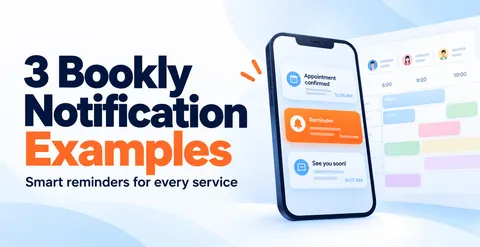
Notice the second line. A good reminder gives the customer a graceful way out — a phone number or a reschedule link — because the alternative is a silent no-show. For a deeper walkthrough of per-service reminder phrasing, see three Bookly notification examples.
3. Follow-up SMS — sent the day after
The follow-up SMS does two jobs. It thanks the customer, which is a small human courtesy most service businesses skip, and it nudges them towards the next booking while the visit is still fresh in memory.
Thanks for visiting Bella Salon today — hope you love the new colour.
Book your next appointment: bellasalon.com/book
The follow-up is the one SMS most owners forget to enable. The industry pattern of lifetime value in service businesses makes it the message with the highest medium-term payback: a customer who rebooks within two weeks of a visit is worth several times a customer who vanishes after a single appointment.
4. Cancellation SMS
When an appointment is cancelled, an SMS gives the customer a clear confirmation. In Bookly, enable the customer notification for the Cancelled status and customise its template.
Your Bella Salon appointment on 29 Oct at 14:00 has been cancelled.
To book a new appointment, call 555-0199.
Include the appointment date and time so the customer knows which booking was cancelled. A clear cancellation message reassures the customer that the cancellation has gone through and they no longer need to attend.
5. Fill-slots batch SMS — occasional, high-leverage
When a cancellation leaves an open slot the same week, a batch SMS to a short list of recent customers can refill it faster than any other channel. The template is simple: "Open slot Thursday 15:00 — reply if interested." (In Bookly, "reply if interested" would be "call us" or "book here" because Bookly SMS is one-way — see the setup section below.)
This is a short-list, high-signal campaign, not a weekly broadcast. Done right, it refills slots that would otherwise sit empty. Done wrong, it feels like spam. For the full campaign walkthrough with timing, segmentation, and sample texts, see how to fill open appointment slots with an SMS campaign.
SMS compliance basics — the short version
A longer treatment lives in our SMS compliance guide for service businesses. The short version is below. This section is practical guidance, not legal advice — if your business is regulated or operates across many jurisdictions, run your SMS flow past a lawyer before you launch.
The one rule to remember
You cannot send someone a business SMS unless they have agreed to receive it. Someone booking an appointment is not, by itself, the same as someone consenting to SMS. The customer must take a specific action — tick a checkbox, sign a form, agree during booking — that is clearly about SMS communication.
In the United States, the Telephone Consumer Protection Act (TCPA) sets statutory damages at $500 per unsolicited text, and up to $1,500 per text for willful violations (47 U.S.C. § 227(b)(3)). A single misfired campaign to a few hundred people can turn into a six-figure problem. In the EU, GDPR Article 7 treats a phone number as personal data and sets a high bar for valid consent; fines can reach into the millions of euros.
Identify your business
Every SMS you send should make it immediately clear who sent it. "Reminder: your appointment is at 14:00" without a business name is both a usability failure and a compliance failure. Open each template with the business name — "Bella Salon reminder:" — and the problem goes away.
Make it easy to opt out
Give customers clear instructions for stopping SMS. If your sender supports replies, include “Reply STOP to unsubscribe.” The SMS delivery provider processes the opt-out, even though replies do not appear in Bookly.
If you use a business name that cannot receive replies, offer a working unsubscribe link or an email address that your team monitors. Check that the method works with your sending setup. Record requests received by email, phone, or another channel, and exclude those customers from the messages they have opted out of.
Record-keeping
With the Bookly Customer Information feature, you can add an SMS consent field to your booking form and save the customer’s response in their profile. This records their choice, not a complete history of consent or opt-outs. Keep any timestamped consent records and opt-out history separately, and use those records to exclude customers from messages they no longer want to receive.
The full compliance guide covers US (TCPA, 10DLC registration), EU (GDPR), UK (ICO), and Canada (CASL) in detail, with a practical checklist. Read the full SMS compliance guide.
SMS by industry — six verticals, one message each
The appointment flow varies by industry. A dental practice sends a very different reminder than a yoga studio. Below are six common service verticals with the one SMS reminder we see owners pick first — the message that moves the no-show number most.
Salon and beauty
A stylist with a 45-minute colour appointment left standing is a loss that is hard to backfill the same day. Salon reminders work best when they confirm the stylist by name and give an easy reschedule path.
Reminder: your Bella Salon visit is tomorrow Thu 24 Oct at 14:00
with Marie. Need to reschedule? Call 555-0199.
More salon templates and setup walkthrough: Salon Beauty & Wellness.
Dental clinics
Dental appointments benefit from a 48-hour reminder because many procedures involve prep (fasting, pre-medication, no coffee that morning). The reminder is the moment to surface that detail.
Reminder: your BrightSmile Dental appointment is Thu 24 Oct at 09:00
with Dr. Lee. Please avoid food 2 hours before. Call 555-0199 to reschedule.
More dental templates: Dental Clinics.
Yoga, fitness, and class-based studios
Classes are the one booking format where group SMS matters as much as individual reminders. A 06:30 Pilates class that half-fills because three people forgot is a bad start to the day for the instructor and the business.
Reminder: your Flow Studio Pilates class is tomorrow Thu 24 Oct, 06:30
with Priya. Mats provided. See you then.
More templates: Fitness Studios.
Coaching and consulting
One-on-one coaching has a prep problem: both sides need to arrive with their notes. A coaching reminder that includes a prompt — "any wins to share?" or "bring your Q4 goal list" — doubles as a session kickoff.
Reminder: our coaching session is tomorrow Thu 24 Oct at 15:00.
Bring your Q4 goal list — we'll start there. See you then.
Photography
Photography sits in the "specific location + specific prep" category. A boudoir, wedding, or product-shoot reminder is where SMS earns its keep: the client needs to know where to arrive, in what, with what.
Reminder: your Nova Studio shoot is tomorrow Thu 24 Oct, 10:00
at 42 High Street. Bring the two outfits we discussed. Light reaches peak at 11:30.
More photographer templates: Photographers & Photo Studios.
Spa and wellness
Spa visits are frequently gifted, which means the booker and the attendee are often different people. The reminder goes to the attendee and should treat the arrival like an experience, not a transaction.
Reminder: your Serene Spa visit is tomorrow Thu 24 Oct at 14:00.
Arrive 10 min early; robes and slippers provided. We can't wait to see you.
More spa templates: Spa Salons and Nail Salons.
The pattern is the same across every vertical. The template is: business name, service, time, one practical instruction, and a graceful out. The specifics change; the structure does not.
How to set up SMS in WordPress with Bookly
Setting up SMS appointment reminders in Bookly takes about ten minutes if the WordPress site already has the Bookly plugin and a Bookly Cloud account connected. The steps below walk through the whole flow end-to-end.
Before you start
You will need:
- A WordPress site with the Bookly plugin installed and activated.
- A Bookly Cloud account connected to the plugin. (Bookly Cloud is the service layer that handles SMS delivery, among other things.)
- A top-up on your Bookly Cloud balance. New Cloud accounts start with a signup credit.
If any of those are missing, Bookly Cloud walks through the account setup.
Step 1 — Open SMS Notifications in the Bookly admin
In your WordPress admin, go to Bookly → SMS Notifications. You will see a list of notification types: confirmation, pending notification, cancellation, reminder, and follow-up, plus notifications to staff.
Step 2 — Enable the core notifications
Toggle on at minimum:
- Notification to a customer about approved appointment (the confirmation SMS)
- Notification about a next upcoming appointment (a reminder sent before the appointment)
- Follow-up SMS — a message sent after the appointment, if your workflow uses it
For each notification, the panel shows an editable template field. The default text is generic; replace it with a template from the use-cases section above.
Step 3 — Use Bookly placeholders for personalisation
Inside each template, Bookly placeholders inject the real booking data at send time:
{client_name}— the customer's name{service_name}— the booked service{appointment_date}and{appointment_time}— the booked slot{staff_name}— the assigned staff member{company_name}— your business name
A template like Hi {client_name}, your {service_name} with {staff_name} is confirmed for {appointment_date} at {appointment_time}. renders as Hi Marie, your cut & colour with Alex is confirmed for Thu 24 Oct at 14:00. for the actual customer.
Step 4 — Set the reminder timing
In the Reminder notification's settings, pick when the reminder fires relative to the appointment time. The industry standard is 24 hours before; 48 hours works better for high-prep services and 2 hours before is a useful second reminder for busy urban salons where last-minute changes are common. You can enable both — a 24-hour reminder and a 2-hour reminder — if the service calls for it.
Step 5 — Send a test SMS
Before letting live customers receive messages, send a test. The simplest way is to book an appointment to yourself through the frontend booking form (use your own phone number) and let the reminder fire on schedule. Verify:
- The customer can identify your business — include your company name in the message body, especially if you use the default sender ID.
- The template placeholders rendered correctly.
- The message arrived within the usual few seconds.
If anything is off, fix it before you turn the notifications on for live customers.
For a step-by-step walkthrough with screenshots, see Notifications & Reminders.
What SMS actually costs
SMS pricing in a WordPress booking stack can go in two very different directions. The honest comparison matters because the wrong model costs service businesses hundreds of dollars per year for messages they never send.
Bookly Cloud SMS — pay-as-you-go
SMS delivery through Bookly runs on Bookly Cloud, on a pay-as-you-go top-up model. There is no monthly SMS subscription, no "credits that expire", no minimum. You top up your Bookly Cloud balance when it runs low; SMS sends draw from the balance; unsent credit stays on your account.
New Bookly Cloud accounts start with a $5 signup credit and up to a $400 bonus on first top-up (the exact match tiers are shown at checkout). The pay-as-you-go model is particularly useful for seasonal businesses — a photographer whose busy season is six months of the year does not pay for SMS during the quiet months.
Per-message rates vary by destination country, since the underlying carriers charge different wholesale rates. The up-to-date rate card lives on the Bookly Cloud dashboard. We do not quote per-country rates in guides because they move; check the dashboard before you plan a big campaign.
Subscription SMS — the other model
Many SMS platforms sell SMS as a flat monthly subscription — $29/mo for 500 messages, $79/mo for 2,000, and so on. These plans look attractive at first glance, especially for the "I'll send a lot of SMS" owner.
The honest arithmetic says the opposite for most service businesses. Across our customer base, the majority of accounts send meaningfully fewer SMS than the lowest subscription tier would include. A one-chair hair studio sending 100 reminders a month pays for 500 under a subscription plan and uses one-fifth of them. On a pay-as-you-go model, that same business pays for 100.
If your business is in the 500+ SMS/month range consistently, do the maths both ways. For most service businesses, pay-as-you-go wins.
WordPress plugin cost sits separately
SMS charges are separate from the Bookly plugin price. Bookly offers annual subscriptions and lifetime licenses. As of October 27, 2026, Pro costs $39 per year or $99 for a lifetime license for one site. Business and Ultimate offer additional features and multi-site options. SMS is billed separately through Bookly Cloud based on usage. Check the Bookly pricing page for current prices and license options.
Common troubleshooting
Five issues account for roughly nine out of ten "my SMS is not sending" tickets. Here is what to check first.
1. Low Cloud balance. Open your Bookly Cloud dashboard. If the balance is at or near zero, that is the problem. Top up your balance, then manually resend the SMS that failed to send.
2. Country not supported. A small number of destinations are not supported by the current Bookly Cloud carrier network. If one specific customer is not receiving SMS while others are, their country is the first thing to check.
3. Phone number format. Numbers need to be stored in international format with the country code (e.g. +44 7700 900100, not 07700 900100). If a customer booked with a national-format number, the SMS gateway cannot route it. Edit the booking record and resave.
4. Notification not enabled. The most common "SMS is broken" ticket turns out to be that the specific notification type (reminder, follow-up) was not toggled on. Go back to Bookly → SMS Notifications and verify each toggle.
5. Spam filter at the carrier. If a template contains a suspicious URL (such as a shortened URL with no business context), the mobile carrier may silently drop it. Use your business domain in reschedule and rebook links.
If none of the above resolves the issue, the Bookly support team will help — the "aim to respond the same day" policy applies to Cloud SMS questions too. The full troubleshooting article covers edge cases around 10DLC US registration, sender ID conflicts in the UK, and SIM-swap scenarios.
Start sending SMS today
If you have Bookly installed, connect your Bookly Cloud account to start sending SMS. New accounts receive a $5 signup credit to help you get started.
Then go to Bookly → SMS Notifications in your WordPress admin, enable an appointment reminder, and adapt one of the examples above for your business. Set the reminder timing and send a test SMS to your own number to check the message before using it with customers.
FAQ
How much do SMS reminders cost through Bookly?
SMS runs on pay-as-you-go through Bookly Cloud. New Cloud accounts start with a $5 signup credit and up to a $400 bonus on first top-up. Per-message rates vary by destination country and are shown on the Bookly Cloud dashboard. There is no monthly SMS subscription and no minimum spend.
Do I need a separate SMS gateway contract?
No. Bookly Cloud handles SMS delivery end-to-end — one account, one top-up, one dashboard. You do not need a separate Twilio, Clickatell, or carrier account for the standard appointment reminder flow.
Can customers reply to Bookly SMS messages?
Not in the Bookly flow — SMS through Bookly Cloud is one-way. For opt-out, use the consent checkbox on the booking form, the customer account settings, or email the business. For reschedule requests, include a phone number or a reschedule link in the SMS and the customer can act from there.
How many SMS can I send on the Bookly Free plan?
The Bookly plugin is free (up to 5 services and 1 staff member via WordPress.org), and SMS runs through Bookly Cloud on pay-as-you-go. Any Bookly plan — Free, Pro, Business, or Ultimate — can send SMS as long as a Bookly Cloud account is connected and has a positive balance.
Is SMS compliant with GDPR and TCPA out of the box?
The infrastructure supports a compliant flow — opt-in via the booking form, template-level business identification, documented opt-out via account settings or email — but compliance is a business responsibility, not a plugin feature. Our SMS compliance guide walks through TCPA (US), GDPR (EU), UK ICO rules, and CASL (Canada) with a practical setup checklist.
What is the best time to send an appointment reminder SMS?
Twenty-four hours before the appointment is the industry standard, and it works well for most service businesses. For high-prep services (dental, long salon treatments), 48 hours before gives both sides more runway. For busy urban salons where last-minute changes are common, a second 2-hour reminder helps catch day-of forgetfulness. You can enable both reminders in Bookly's reminder settings.
Last updated: October 26, 2026. Bookly facts verified against WordPress.org listing on 2026-10-08 (586 reviews, 4.4★, 60,000+ active installations, published October 10, 2014). SMS infrastructure and pricing reflect Bookly Cloud as of October 2026; per-message rates and bonus tiers may change — check the Bookly Cloud dashboard for current values.