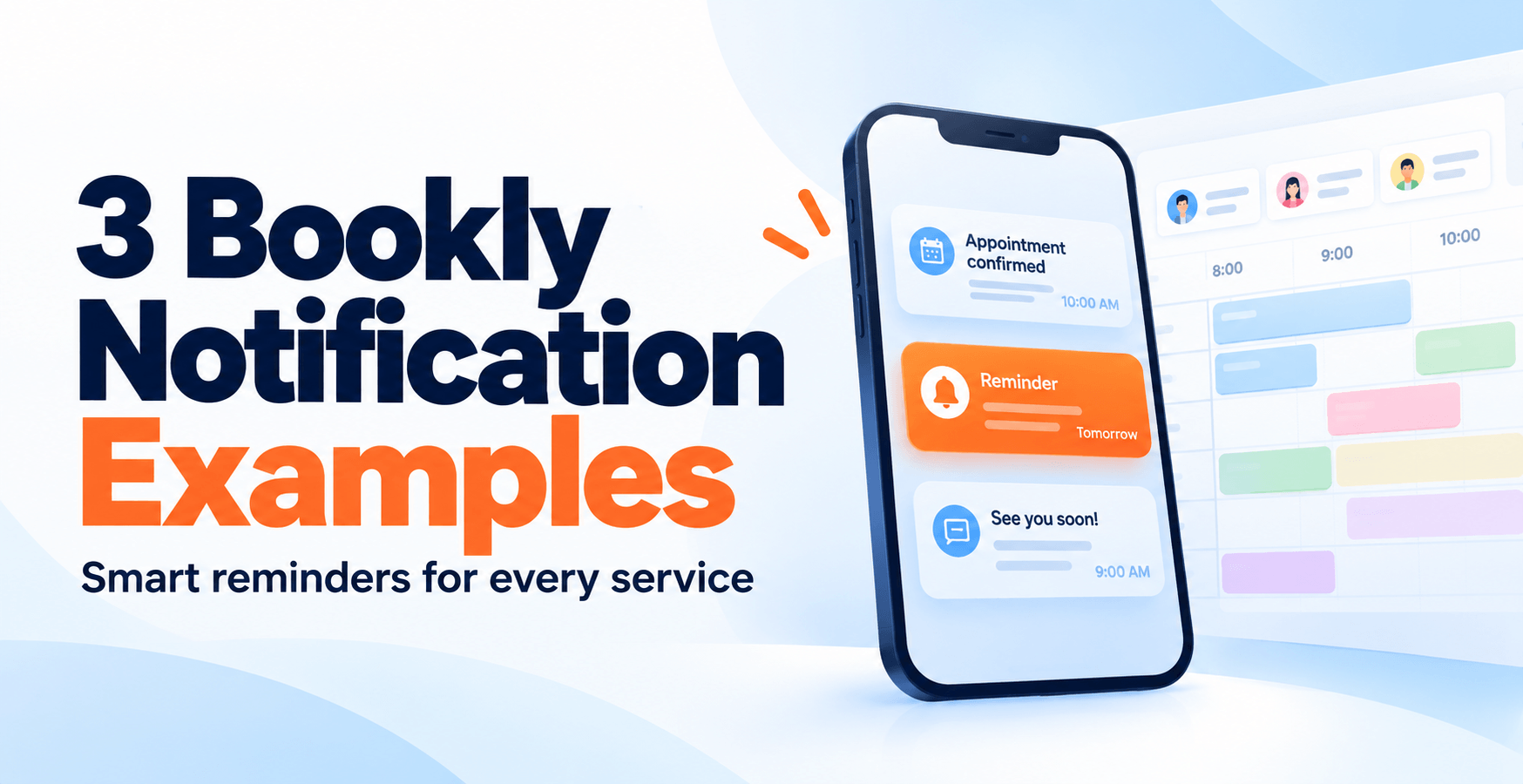
Useful Reminder for Each Service: Three Bookly Notification Examples
A good appointment reminder is more than a timestamp. It also tells the customer what to bring, where to go, or how to prepare — the small details that turn a generic “see you Tuesday at 3 pm” into a visit that starts on time, without a flurry of pre-arrival questions.
This guide shows three Bookly notification examples — a salon reminder, an on-site service reminder, and a consultation reminder — each with the same simple pattern: start from the normal appointment details, then add one short, useful instruction. We also walk through how to set a per-service notification up in the Bookly admin and verify it goes out as expected.
Example numbers and business names below are illustrative. Use the examples as starting points and test each notification with your own booking details.
Why one practical instruction matters
Most booking plugins can send a reminder. Fewer owners actively write the reminder text. A basic reminder — “Your appointment is on {appointment_date} at {appointment_time}” — is correct, but it is not helpful. The customer already has the date somewhere. What they usually do not have, by the time they are getting ready to leave the house, is the answer to one of these questions:
- What do I bring with me?
- How do I get in once I arrive?
- How should I prepare before the visit?
If the reminder answers one of those questions, three things happen at once:
- Fewer pre-visit messages. The customer does not DM the business asking “what do I need to bring?” the night before. That saves the owner or front-desk staff a few minutes per booking — more at scale.
- Better attendance. When customers show up with the right item or in the right place, visits start on time. On-site services in particular benefit, because missed access is one of the main causes of a wasted trip.
- A more confident customer. Someone who feels prepared is more likely to keep the appointment and to rebook.
The best reminder is still a short one. If you need to send a long preparation checklist, use a separate email and keep the SMS focused on the essential instruction.
A note on where this fits in a broader SMS plan
A per-service reminder is a service message — it goes to a customer who already booked. It is different from a promotional message to fill a quiet week, which goes to a list of existing customers you have asked ahead of time. Both can live inside Bookly, and both start with the same mindset of writing something short, concrete, and genuinely useful. If you also want to turn empty slots into bookings with a small targeted send, see our companion guide: Fill open appointment slots with a small Bookly SMS campaign.
Example 1 — Salon or studio: “bring a towel”
Illustrative business: Ember Hair Studio — small independent salon offering haircuts, color, and a weekly deep-conditioning treatment that requires the customer to arrive with their own towel.
Original SMS example
{company_name}: Your appointment is on {appointment_date} at {appointment_time}.
A salon might use this basic message across its services. It gives the essential appointment details for a standard cut. For the deep-conditioning service, it is also where the front desk starts getting messages the day before: do I bring anything? can I wash my hair at home first?
One useful addition
{company_name}: Your appointment is on {appointment_date} at {appointment_time}.
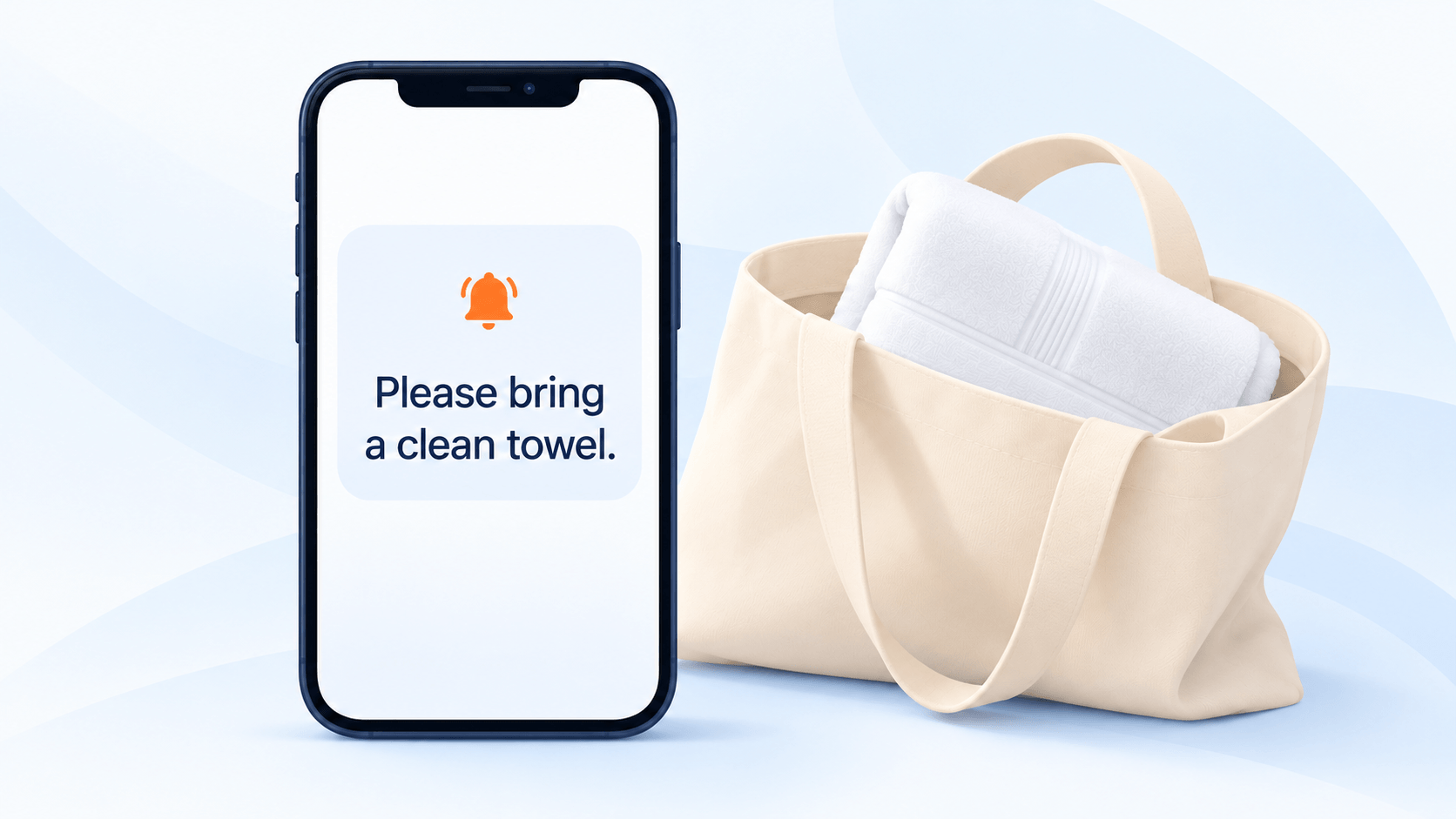
Please bring a clean towel; come with dry hair.
Two short sentences. Nothing about pricing, cancellation, or promotions — this is a service reminder, not a promotional message. Check the segment count with realistic business and appointment details substituted for the placeholders; the final length depends on those values.
Setup selection
Set up the reminder for the deep-conditioning service and check any existing reminders so the customer does not receive duplicate messages.
- Which service: Deep-conditioning treatment (one specific service).
- Which notification type: Scheduled Notifications, with the reminder set to arrive before the appointment.
- Which recipient: Customer. The staff member already has the booking in their calendar; they do not need the “bring a towel” nudge.
Full step-by-step is in the Bookly support article: Customize notifications. The short version — open Bookly → SMS Notifications, enable an existing notification template or create a new one, select the deep-conditioning service, edit the message, and save.
Scheduling
A reminder is only useful if it arrives early enough for the customer to act on it. For a “bring a towel” instruction, 24 hours before the appointment is the sweet spot — late enough that the appointment is still fresh in mind, early enough that the customer can prepare.
- Set the reminder to fire 24 hours before the appointment time.
- Avoid stacking a second reminder two hours before the appointment with the same text. One useful reminder is better than two identical ones.
Delivery check
Before enabling the new template for all customers, verify it works in practice:
- Test send. Book a sample deep-conditioning appointment using your own or a staff member’s phone number as the customer’s contact number, scheduled 25 hours ahead. Wait for the reminder and check the received SMS for the correct text and booking details.
- Check SMS Details. In Bookly → SMS Notifications → SMS Details, confirm the message was delivered, how many segments it consumed, and that the sender name matches what you expect.
- Check for duplicate messages. If the booking receives both a generic reminder and the new service-specific reminder, review the settings of both notifications.
After testing, check that the notification is enabled with the intended service and schedule.
Example 2 — On-site service: access and parking
Illustrative business: Harbor Home Services — mobile cleaning and small-repair business whose technicians travel to customer homes. Missed access (customer not home, key not left, gate code wrong) is their most common cause of a wasted trip.
Original SMS example
{company_name}: Your appointment is on {appointment_date} at {appointment_time}.The same basic message works as a starting point here. For an on-site visit, this is where the technician often arrives, waits, calls, and eventually leaves — because nobody told the customer the technician would actually need to get inside.
One useful addition
{company_name}: Technician visit {appointment_date} at {appointment_time}.
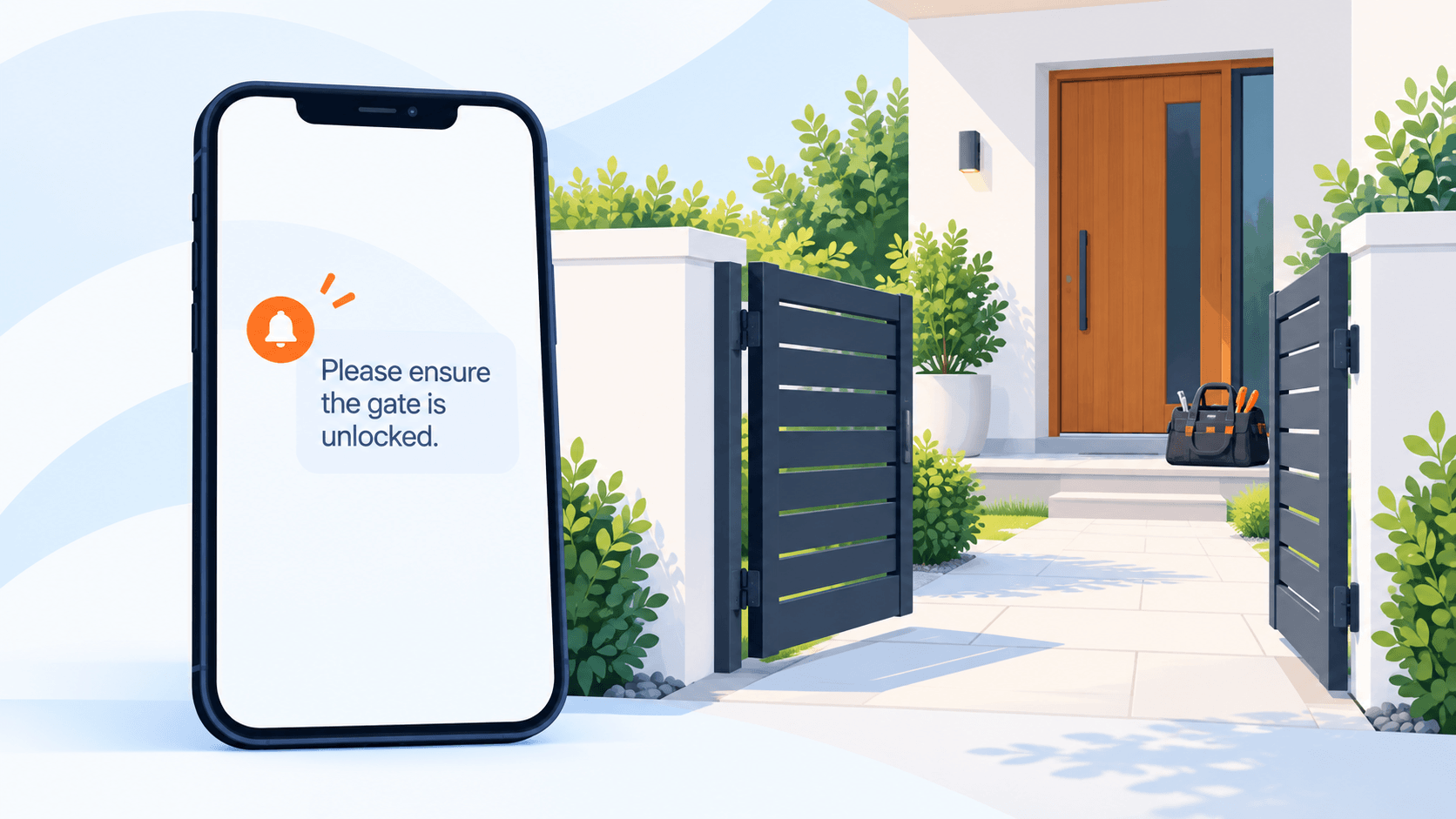
Please ensure someone 18+ is home and the gate is unlocked.
The language is deliberately concrete: who needs to be there (someone 18+), what access matters (gate unlocked). The owner can swap in parking instructions, a key-box code reminder, or any other access detail that fits the business. The point is one specific thing — not a bulleted checklist.
If the access details are too long for a single SMS segment, split the information: short SMS with the essential line, longer email with the full prep checklist, map link, and phone number. Configure and test the email separately from the SMS reminder.
Setup selection
- Which service: The on-site visit service (if the business offers both on-site and in-shop services, scope the custom reminder to on-site only).
- Which notification type: Scheduled Notifications, with the reminder set to arrive before the appointment.
- Which recipient: Customer. If staff also need an alert, create a parallel template with “recipient: staff” and tailored content.
Open Bookly → SMS Notifications, enable an existing notification template or create a new one, select the on-site service, edit the message, and save. If the business already sends a general reminder, check both notifications during testing to avoid duplicate messages.
Scheduling
On-site logistics benefit from a slightly earlier reminder than in-shop services, because the customer may need to arrange a key handover or move a car.
- Fire the reminder 24 hours before the visit. For complex access (gated communities, buzzer systems), consider an additional reminder at 2 hours before, but only if the text is genuinely different — not a repeat of the first message.
- Check how your notification settings work for bookings made shortly before the appointment. If needed, include the practical instruction in the booking confirmation.
Delivery check
- Test send. Create a test on-site booking for a staff member’s own address, 25 hours ahead. Wait for the reminder. Confirm the access text reads clearly and does not read as spam.
- Check SMS Details. Check the delivery status and segment count in SMS Details.
- Check the recipient. If you also configure a separate staff notification, test both messages to confirm that each reaches the intended person.
Example 3 — Consultation: how to prepare
Illustrative business: Linea Legal — small consultancy running 45-minute paid consultations by video, where the quality of the call depends on the client arriving prepared with documents and a clear brief.
Original SMS example
{company_name}: Your appointment is on {appointment_date} at {appointment_time}.For a video consultation, the hidden gap is preparation. The client shows up on the call, time is spent explaining the situation, leaving less time for advice. The reminder is the right place to point at a preparation guide — not to deliver the full guide inside the SMS.
One useful addition
{company_name}: Consultation on {appointment_date} at {appointment_time}.
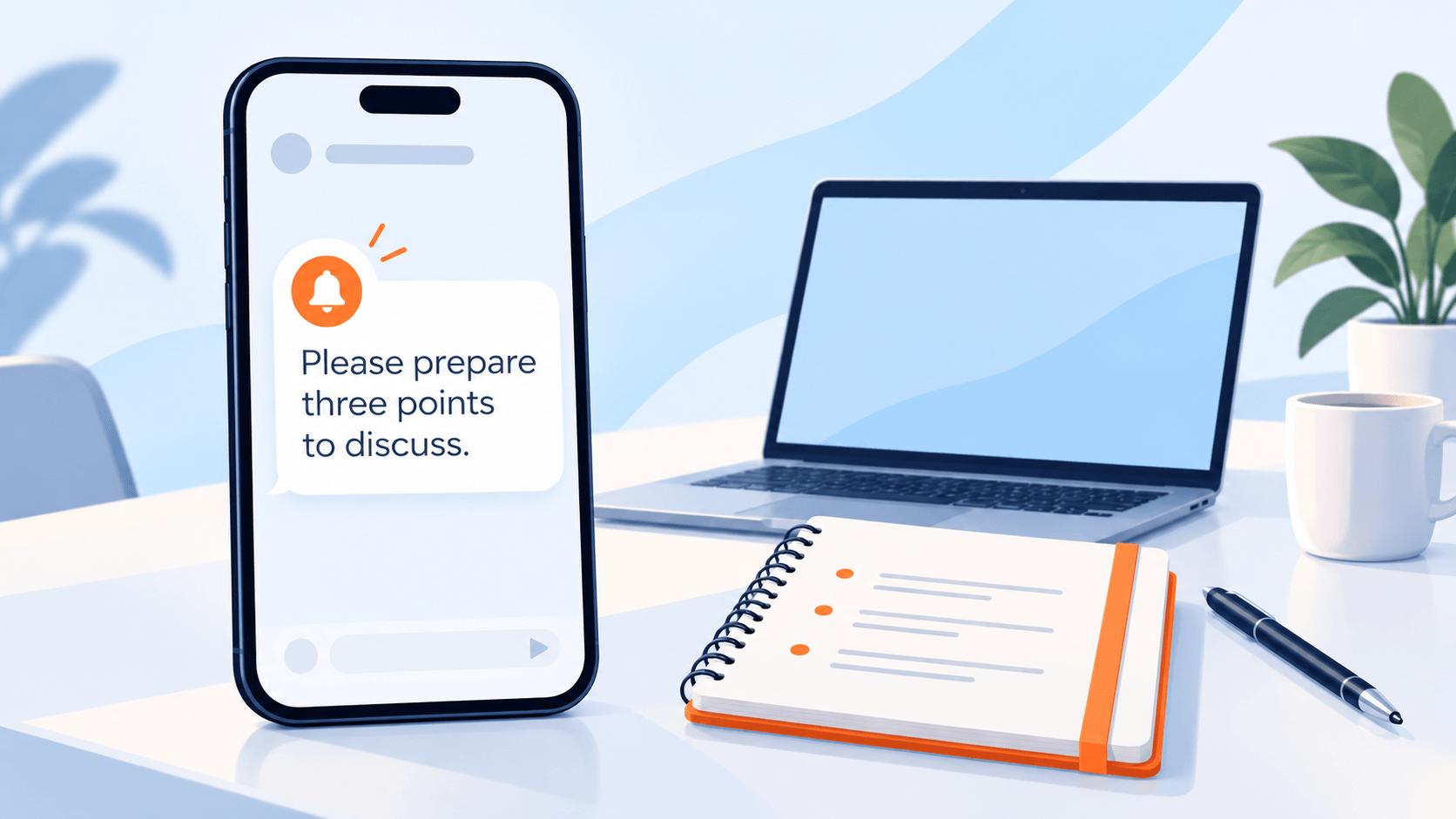
Please prepare 3 bullet points on your situation: linealegal.example/prep
The SMS stays short. The actual preparation checklist lives at a dedicated URL — a page on the consultant’s own site that lists what to prepare. Use a short link on your own domain and check the segment count after the booking details have been substituted. Replace the illustrative URL in the example with your actual preparation page before using the template.
If the business prefers a cleaner link or wants to track how many customers actually open the prep page, use a short URL on the owner’s own domain rather than a public shortener. A recognizable domain helps customers understand where the link will take them.
Setup selection
- Which service: The paid consultation service (not every service — a free intro call probably does not need the same prep).
- Which notification type: Scheduled Notifications, with a reminder for the customer set to arrive a chosen amount of time before the appointment. For a video consultation, include the video link in this reminder.
- Which recipient: Customer.
Open Bookly → SMS Notifications, enable an existing notification template or create a new one, select the consultation service, edit the message, and save.
Scheduling
Consultations benefit from an earlier reminder than hands-on services, because preparation takes real time.
- Fire the reminder 48 hours before the consultation. That gives the client a working day to gather documents.
- Avoid firing a second reminder one hour before the appointment with the same prep link — if the client has not opened it by then, a last-minute nudge rarely changes the outcome.
Delivery check
- Test send. Book a sample consultation more than 48 hours ahead, using a staff member’s phone number as the customer’s contact number. Confirm the reminder fires, the link opens on mobile, and the prep page actually loads.
- Check SMS Details. Confirm delivery and check the segment count.
- Walk the full flow. Open the SMS, tap the link, land on the prep page, read it as a customer would. If the page is slow, missing, or feels irrelevant, fix that before scaling the campaign.
How to set up a per-service notification in Bookly
The three examples above all follow the same five-step workflow in the admin. Here it is as a single reference:
- Open Bookly → SMS Notifications. This is where you manage your SMS notification templates.
- Choose the notification type and recipient. Bookly has two notification types: Instant Notifications and Scheduled Notifications. For the reminders in this guide, choose Scheduled Notifications, select the customer as the recipient, and set how long before the appointment the reminder should be sent.
- Set up the notification for the relevant service. Edit an existing predefined template or create a new notification with the settings you need. Select the service the message applies to and check that its settings match your intended use.
- Edit the text. Keep the appointment details, then add one short useful instruction. Check the final message through a test booking. If the text is too long, shorten it or put detailed instructions in a separate email.
- Save and verify. Create a test booking in a scheduling window that will trigger the reminder, wait for it to fire, and confirm delivery in Bookly → SMS Notifications → SMS Details.
SMS delivery runs through Bookly Cloud as a separate pay-as-you-go service; you top up a balance and pay for the segments you send.
For the full support reference with screenshots, see Customize notifications.
Frequently asked questions
Can I set a different notification for each service?
Yes. Select the relevant service when editing an existing template or creating a new notification. Test the settings alongside any existing reminders to check that the customer receives the intended messages.
What SMS text length works best?
Short. A single SMS segment on the GSM-7 alphabet is 160 characters, including the business name, date, time, and any extra instruction. Longer messages split into multiple segments, and you pay per segment. Check the actual message after substitution; emoji and some other characters can change the encoding and reduce the number of characters per segment.
How do placeholders work for service name, staff, time, and so on?
Bookly uses merge codes in curly braces — for example, {appointment_date}, {appointment_time}, {service_name}, {company_name}. The admin shows the available codes next to each template. Substituted values can vary in length, so check the message received from a test booking with realistic details.
How can I check the message before using it for customers?
Create a test booking using a staff member’s phone number as the customer’s contact number. Schedule it so the reminder can be sent, then check the actual SMS on their phone to confirm that the text, booking details, and any links appear correctly.
How do I test SMS delivery?
Create a sample booking scheduled far enough ahead to trigger the reminder, wait for it to fire, and confirm receipt on a real phone. Then check Bookly → SMS Notifications → SMS Details for delivery status, segment count, and sender name. If the segment count is higher than expected, tighten the copy or remove emoji before scaling.
What is the difference between Instant Notifications and Scheduled Notifications?
Bookly has two notification types: Instant Notifications and Scheduled Notifications. For the reminders in this guide, use Scheduled Notifications and set how long before the appointment the message should be sent.
Why not just send everything in email?
Email is a good channel for long instructions, maps, and detailed checklists. SMS is a good channel for the short reminder that nudges the customer to open that email, or to simply remember a one-line instruction. Use SMS for the short reminder and a separate email for longer instructions. Configure and test each notification for its intended purpose.
Ready to tailor your reminders?
Open Bookly → SMS Notifications in your WordPress admin and start with one service that creates the most pre-visit questions.
See the Customize Notifications guide →
New to Bookly Cloud for SMS? Learn how pay-as-you-go SMS works and claim the Cloud welcome balance at Bookly Cloud.