
Classic form (Step-by-step booking form)
This article explains how to customize the classic step-by-step booking form.
If you’re not sure which booking form to use, see Booking form types / Choose a booking form.
How to customize the classic booking form
Section titled “How to customize the classic booking form”You can customize the layout, colors, labels, fields, and step texts of your booking form. To edit the form:
-
Go to Bookly > Appearance.
-
Choose Step by step form.
-
Adjust the form settings in the available tabs.
-
Click Save.
Customize colors
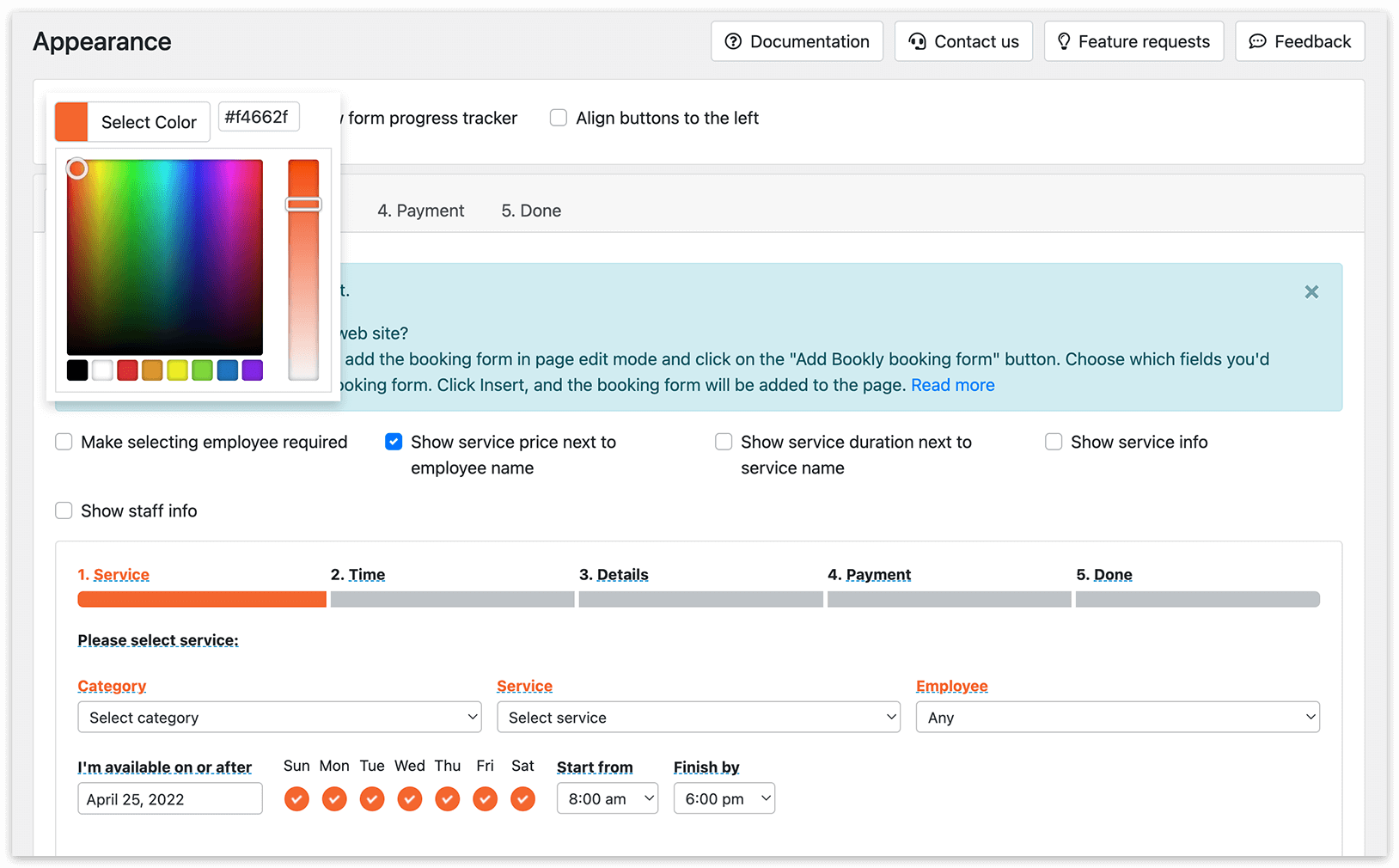
Section titled “Customize colors”Use the color picker to adjust the main colors of the classic booking form so it matches your website design.
After updating the colors, click Save.
Edit texts and add booking details
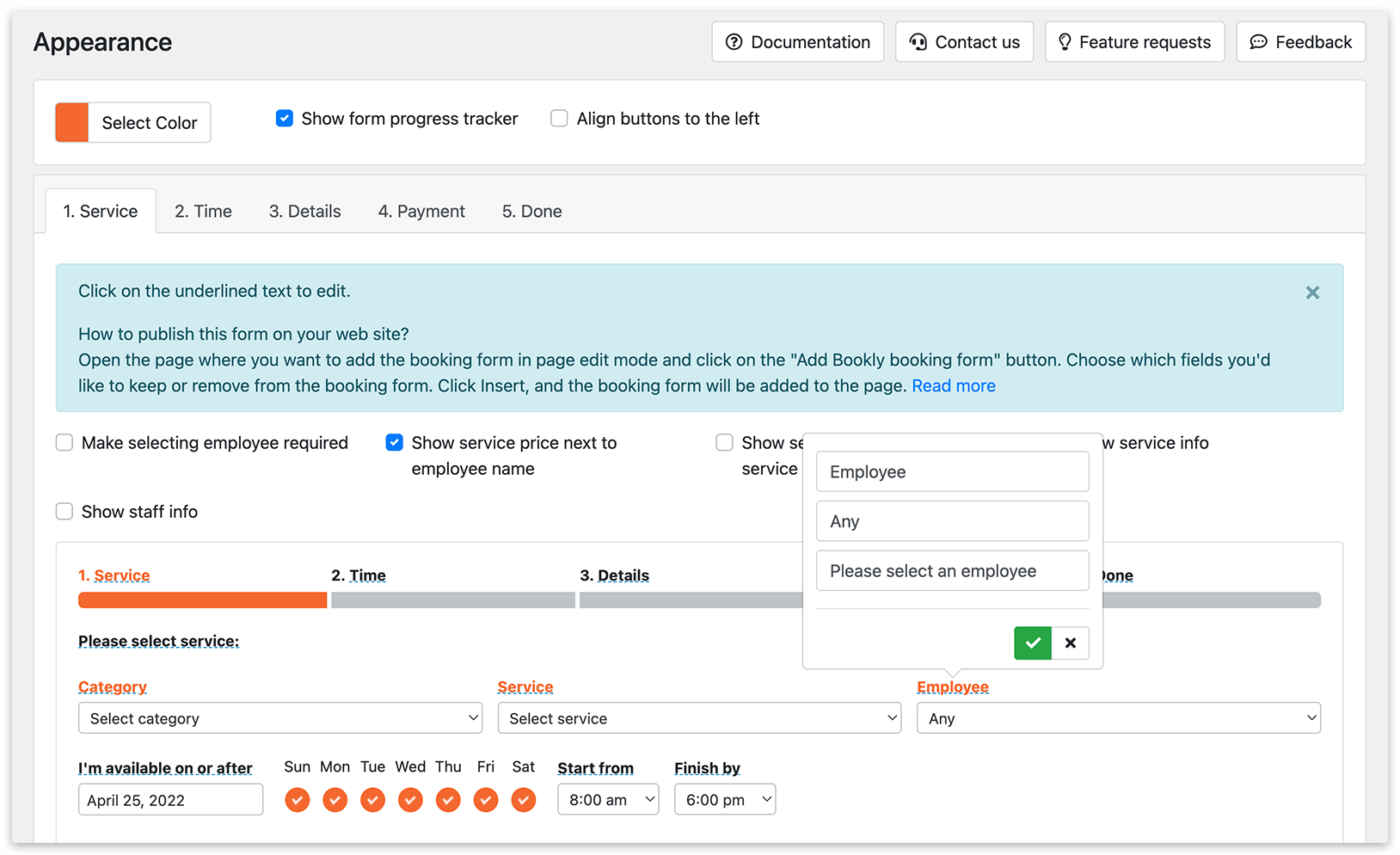
Section titled “Edit texts and add booking details”You can edit the text shown on each booking step.
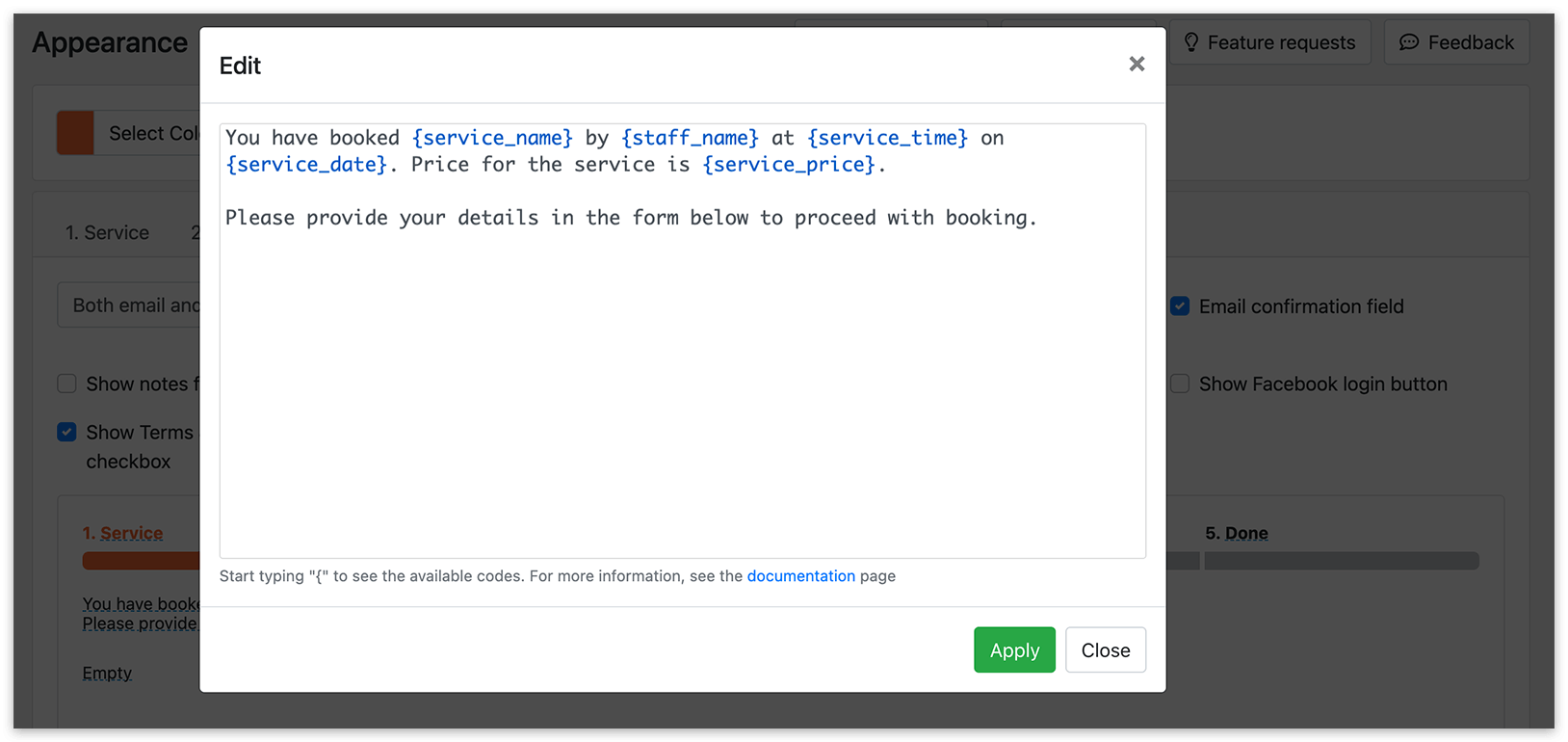
Click the underlined text to open the editing window. Enter your text and add codes such as {service_name}, {staff_name}, or {total_price} to show booking details dynamically.
Start typing { and choose a code from the suggestions available in the editor. Click Apply, then Save.
Example:
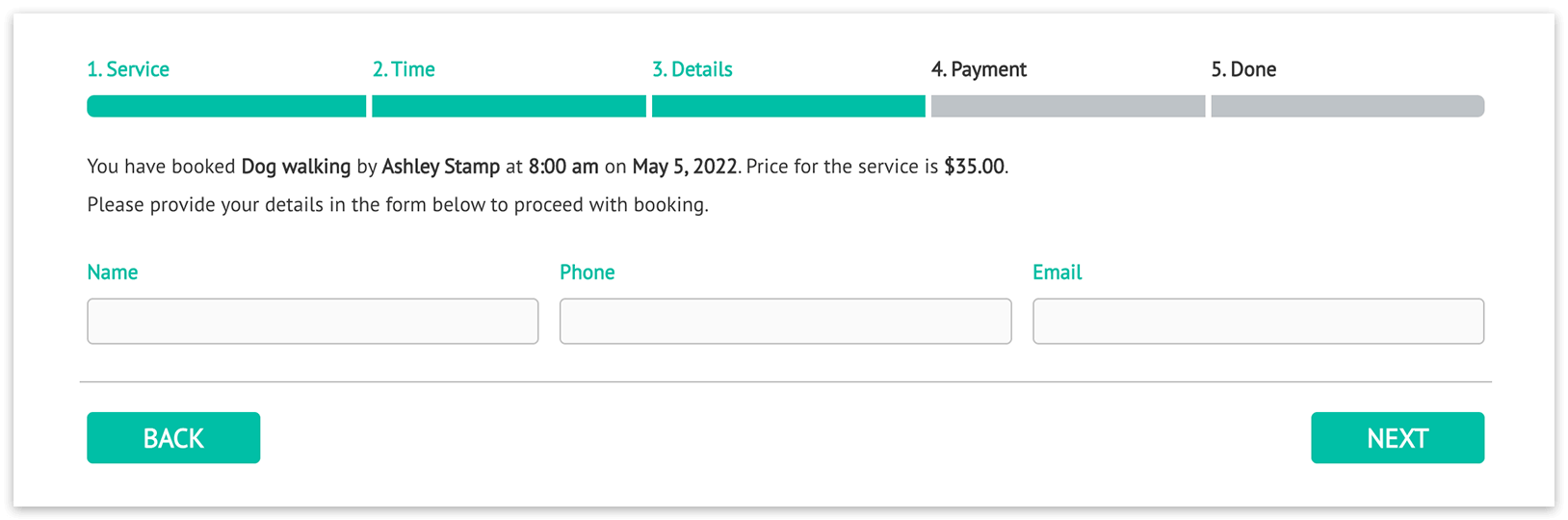
You selected to book {service_name} with {staff_name} at {service_time} on {service_date}.Price for the service is {service_price}.Please provide your details in the form below to proceed with booking.For descriptions of the codes, see All Placeholders. Not all codes listed there are available in the Appearance section; use the editor suggestions to check which codes you can insert.
Advanced: conditional and repeated content
Section titled “Advanced: conditional and repeated content”Use conditional blocks to show text only when specific booking information exists.
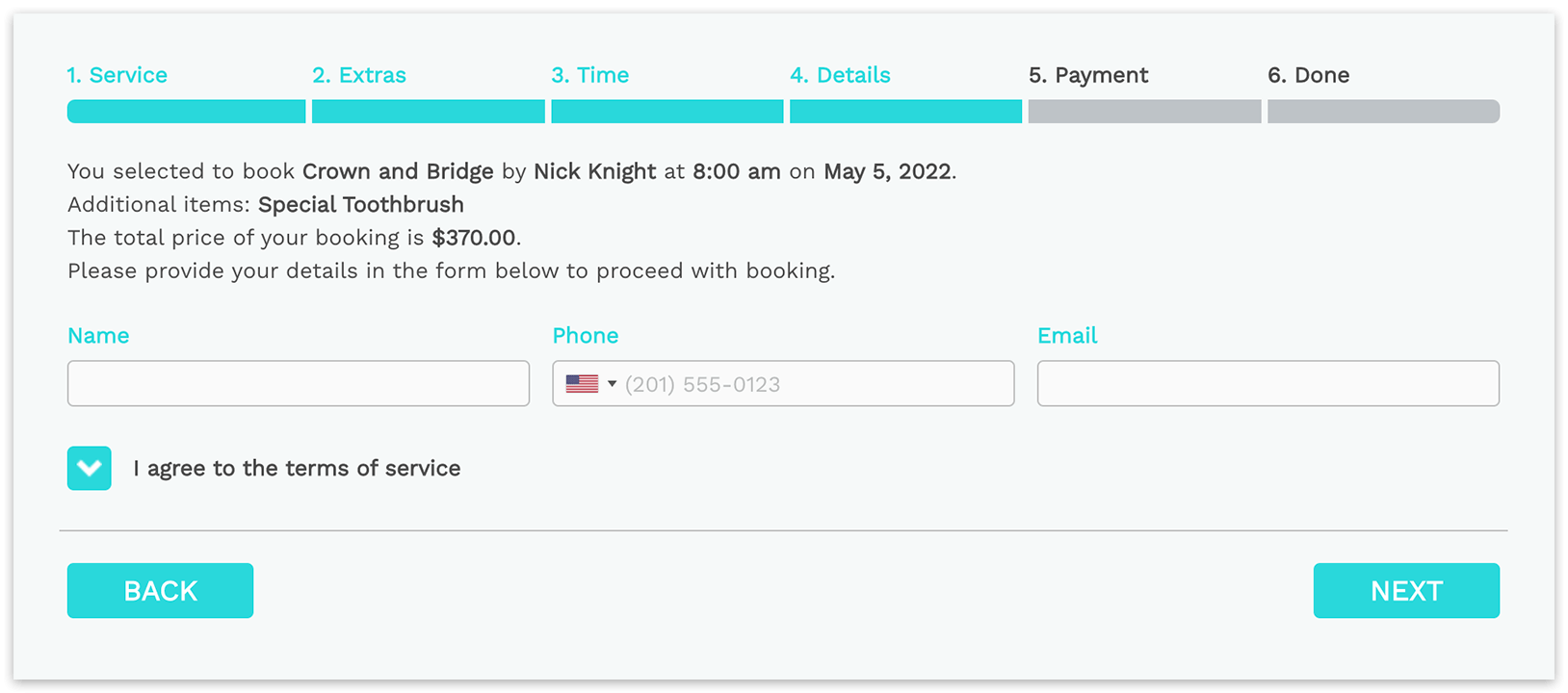
The following example displays the selected extras only when they are present. The {extras} code requires Service Extras Add-on.
{#if extras} Additional items: {extras}{/if}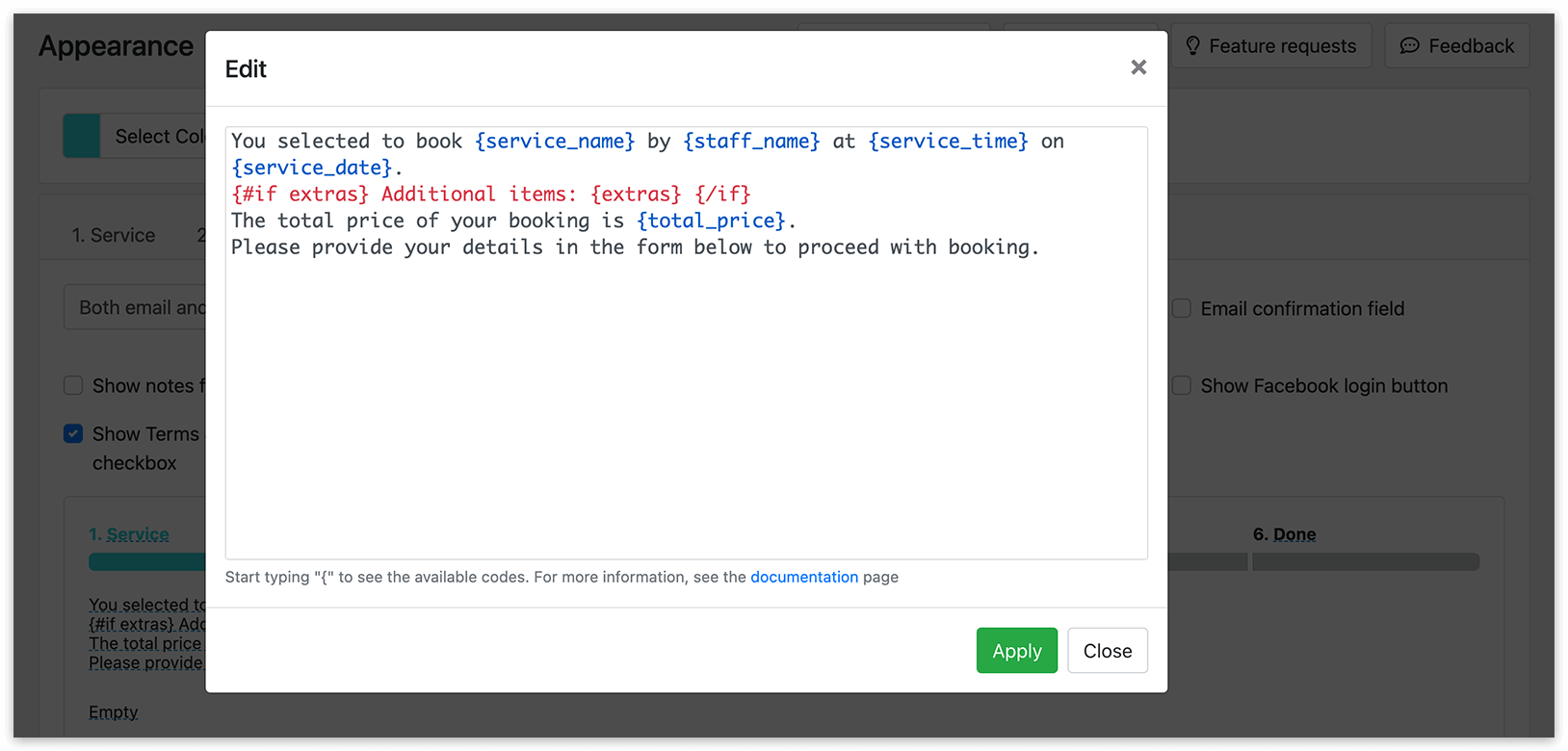
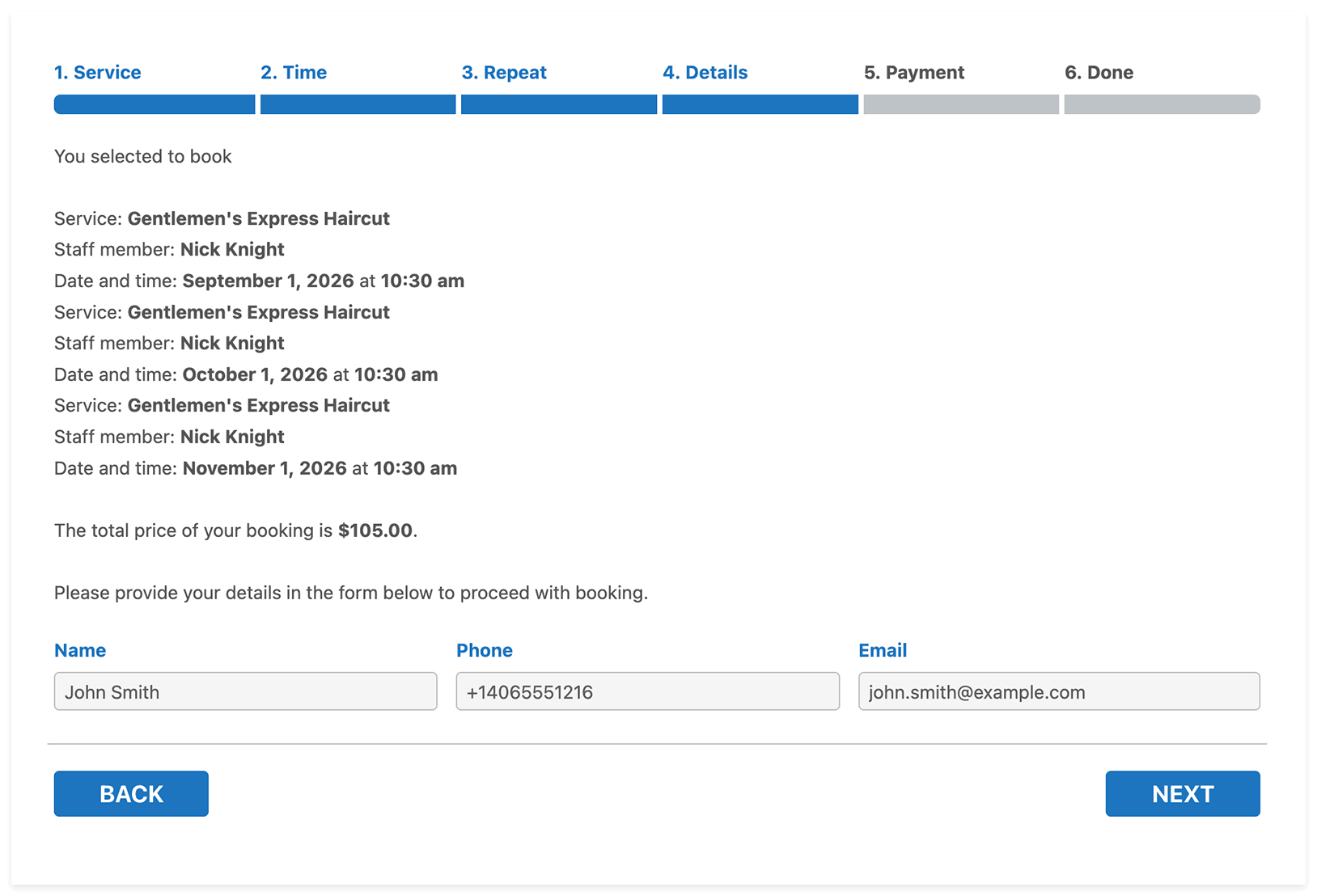
If you use add-ons that allow several appointments in one booking session, use a repeated block to show details for each appointment in the booking. The content inside the block is repeated once for each appointment.
Example:
{#each appointments as appointment}Service: {appointment.service_name}Staff member: {appointment.staff_name}Date and time: {appointment.appointment_date} at {appointment.appointment_time}{/each}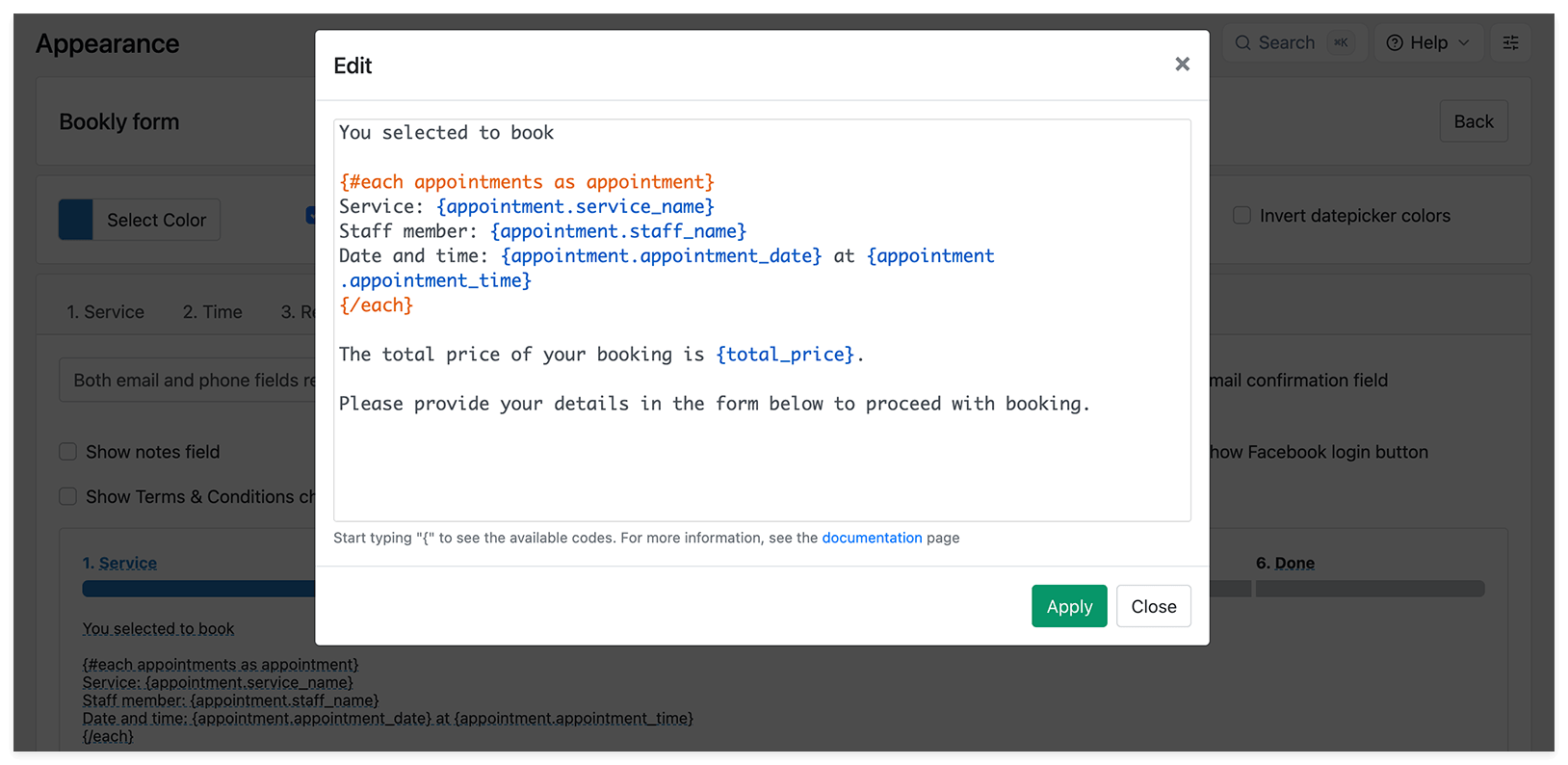
Check the mobile version
Section titled “Check the mobile version”If you modify or translate button titles, also check the mobile version of the form. Open Bookly Appearance in mobile view, update the button texts for each step, and save the changes.
Hide steps or fields
Section titled “Hide steps or fields”To hide fields such as Category, Service, or Employee, adjust the booking form block or shortcode settings when you add the form to a page. If you hide a required field, select a default value for it.
Hiding a booking step depends on the step and your Bookly settings. For example, to hide the Payment step, disable all payment methods, including offline payment, in Bookly Settings > Payments. See How do I remove the payment step from the booking form?.
Learn more: Publish Booking Form
Browse common questions
Section titled “Browse common questions”How can I change the color or the font size of a warning message?
How to hide Category / Service / Employee fields in the booking form?
How can I change text color in Bookly booking form?