
Modern booking forms
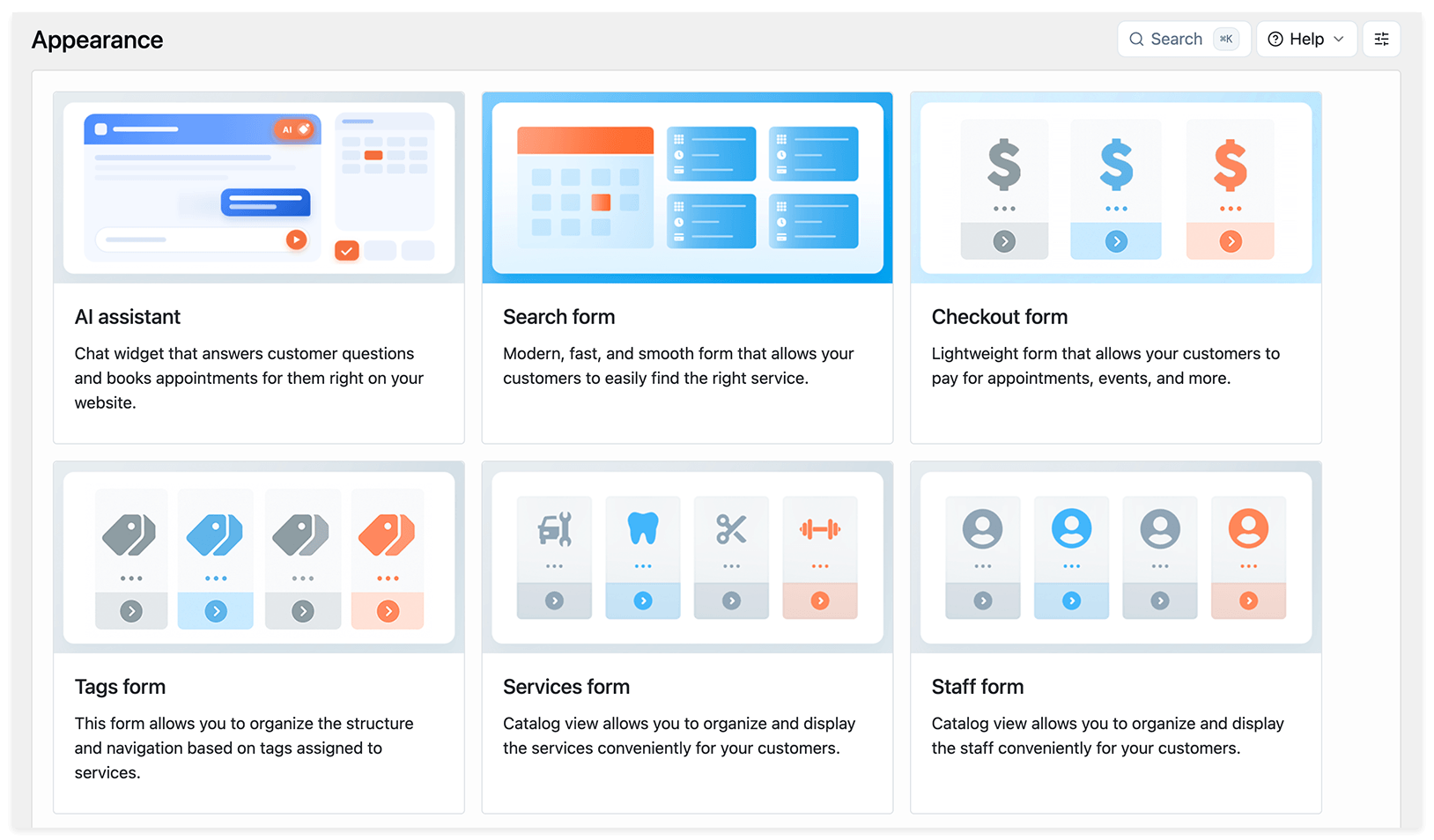
This article explains how to create, customize, and publish Bookly’s Search, Services, Staff, and Tags booking forms.
- Search form: customers choose a date first, then see available services and staff members. View demo.
- Services form: customers browse services in a catalog view. View demo.
- Staff form: customers choose a staff member first. View demo.
- Tags form: customers narrow down services using tags in one or more filtering steps.
For help choosing a form, see Choose a booking form. For conversational booking through chat, see AI Assistant booking form.
Bookly also includes a Cancellation form for cancelling appointments and a Checkout form for paying through a direct link. Their setup is covered separately in Cancellation form and Checkout form.
Before you start
Section titled “Before you start”Set up your services, assign them to staff members, and configure their working hours. These settings determine what customers can book and when.
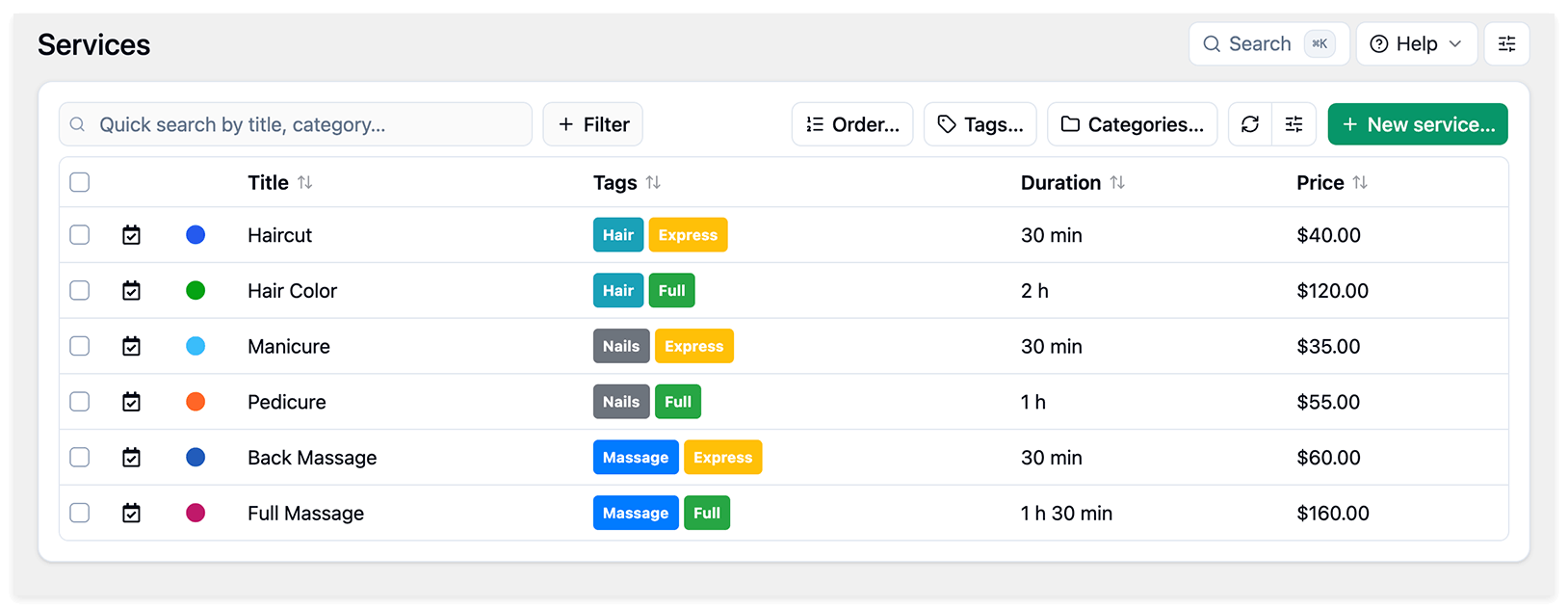
For a Tags form, also assign tags to your services in Bookly > Services. See Tags form below.
Create a modern booking form
Section titled “Create a modern booking form”- Go to Bookly > Appearance.
- Choose Search form, Services form, Staff form, or Tags form, then click Add new form.
- Click an element in the preview to edit its text or settings in the panel on the right. Use the tabs above the preview to switch between booking steps.
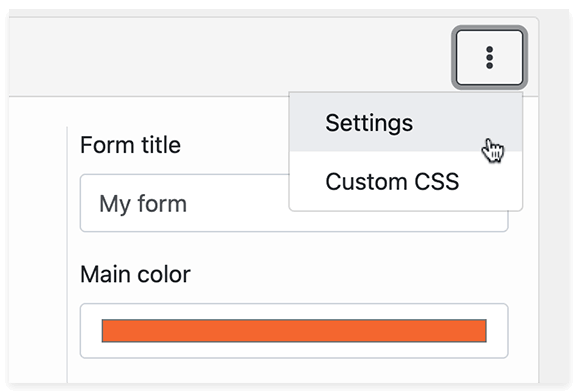
- Open the three-dot menu in the form editor and choose Settings to set the form title and appearance.
- Click Save. You can return to the editor later to adjust the settings described below.
Save and publish the booking form
Section titled “Save and publish the booking form”- After saving the form, click Back to return to the list of forms.
- Find your form’s card and copy its shortcode using the card menu.
- Add the shortcode to a WordPress page or post. In the WordPress block editor, use a Shortcode block.
- Preview the page, then publish or update it when the form is ready.
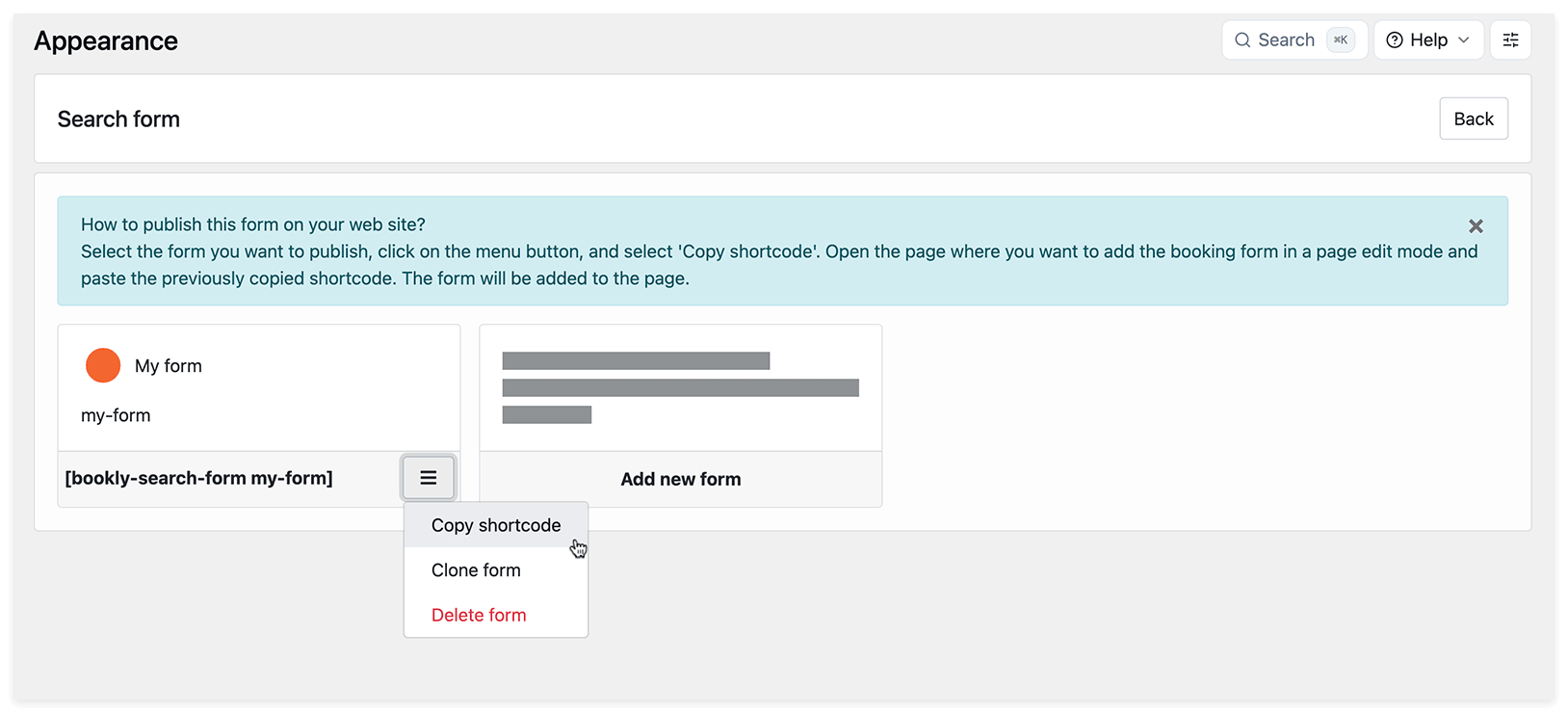
For example, a shortcode may look like [bookly-search-form my-form] or [bookly-services-form my-form-413]. Copy the shortcode generated for your form, rather than one of these examples.
The Slug is the form’s identifier, such as my-form in the first example. You can find it in the form’s Settings after saving.
You can create separate forms for specific services or staff members and place them on different pages. All appointments created through these forms appear in the same Bookly Calendar.
For more ways to add a form to a page, see Publish Booking Form.
Configure the booking form
Section titled “Configure the booking form”Open your form in Bookly > Appearance to customize it. The examples below mainly show the Search form; the available steps and controls depend on the form type.
Labels and form elements
Section titled “Labels and form elements”Click the text, field, or other element you want to change in the preview, then edit its settings in the panel on the right.
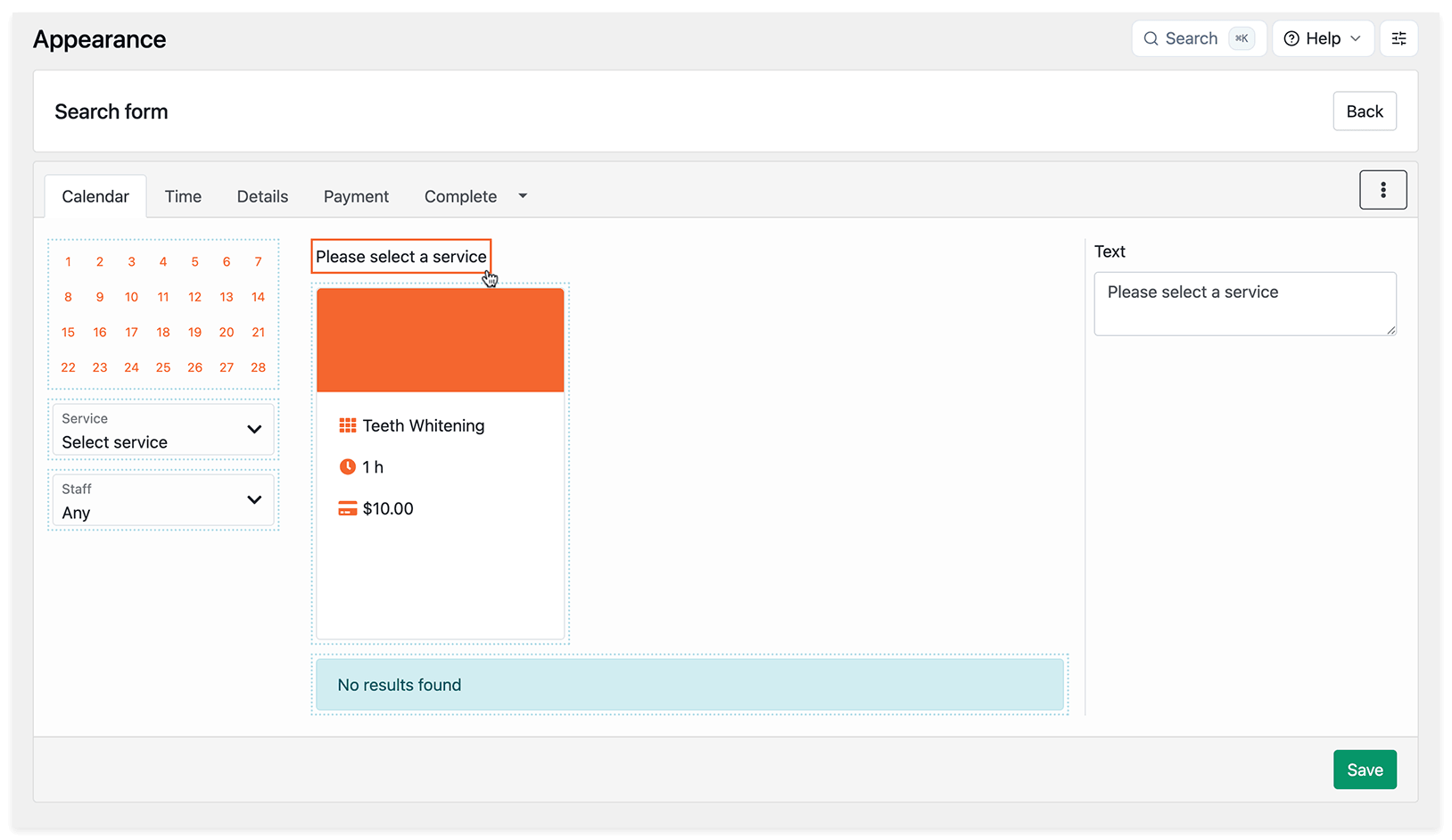
For a Service or Staff drop-down field, you can set a default value and choose whether to display the field. To hide it, choose a default value and clear Show.
Form settings and appearance
Section titled “Form settings and appearance”Open the three-dot menu in the form editor and select Settings. Here you can edit the Form title, choose the Main color, and apply a ready-made theme. To use a theme, select it, customize its colors if needed, and click Apply theme.
In all modern booking forms, the appearance settings also let you:
- Enable an adaptive card grid.
- Make the form background transparent.
- Change the filters and calendar position.
- Adjust corner rounding and card shadows.
- Hide form borders.
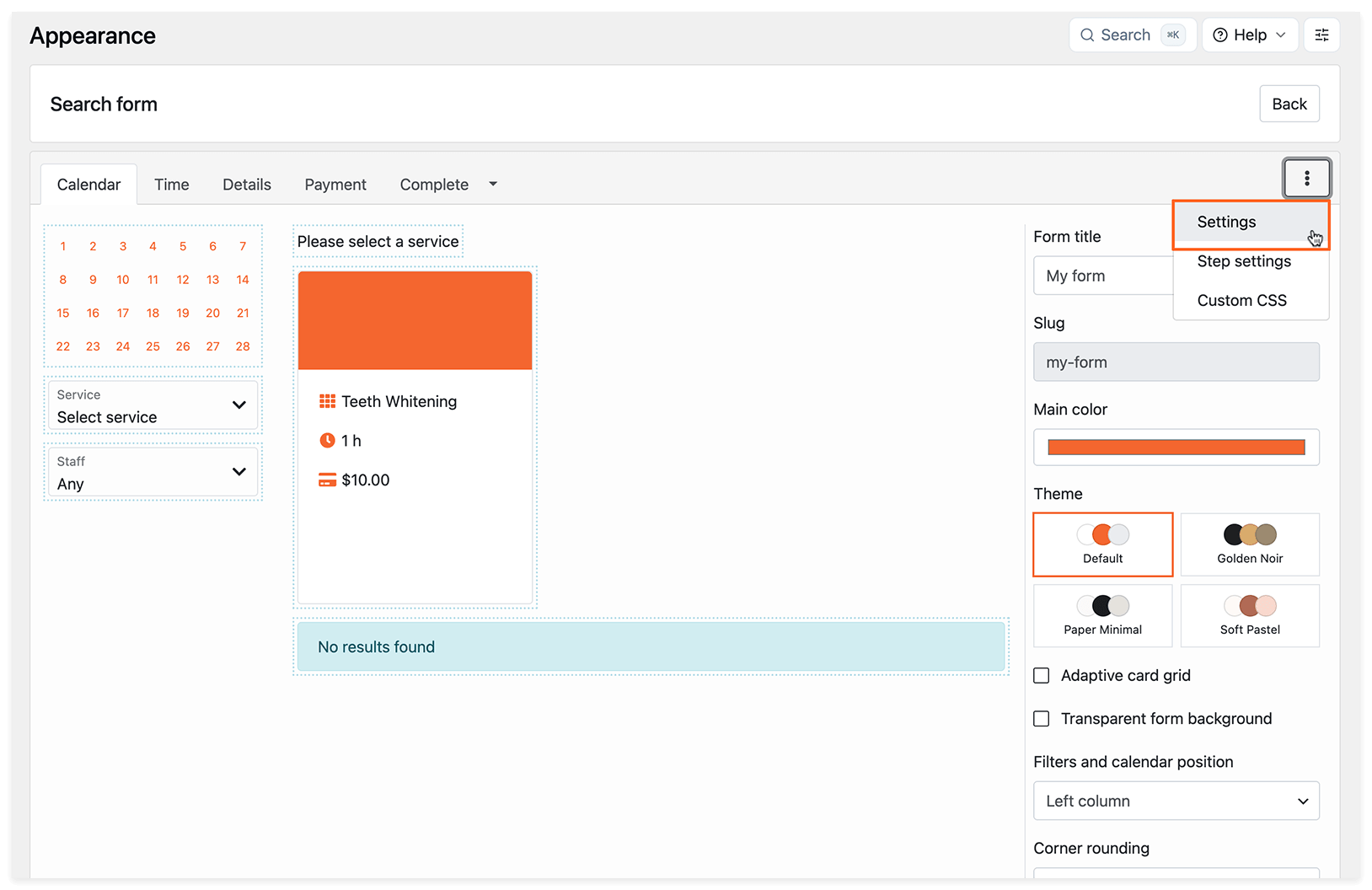
For further styling, open the same three-dot menu and select Custom CSS.
Click Save after making changes.
Initial view of the booking form
Section titled “Initial view of the booking form”In Settings, use Initial view to choose how customers open the form:
- Form: the form is displayed directly on the page.
- Button: the form opens in a modal window when a customer clicks a button. Set the button text in Button title.
Available dates in the calendar
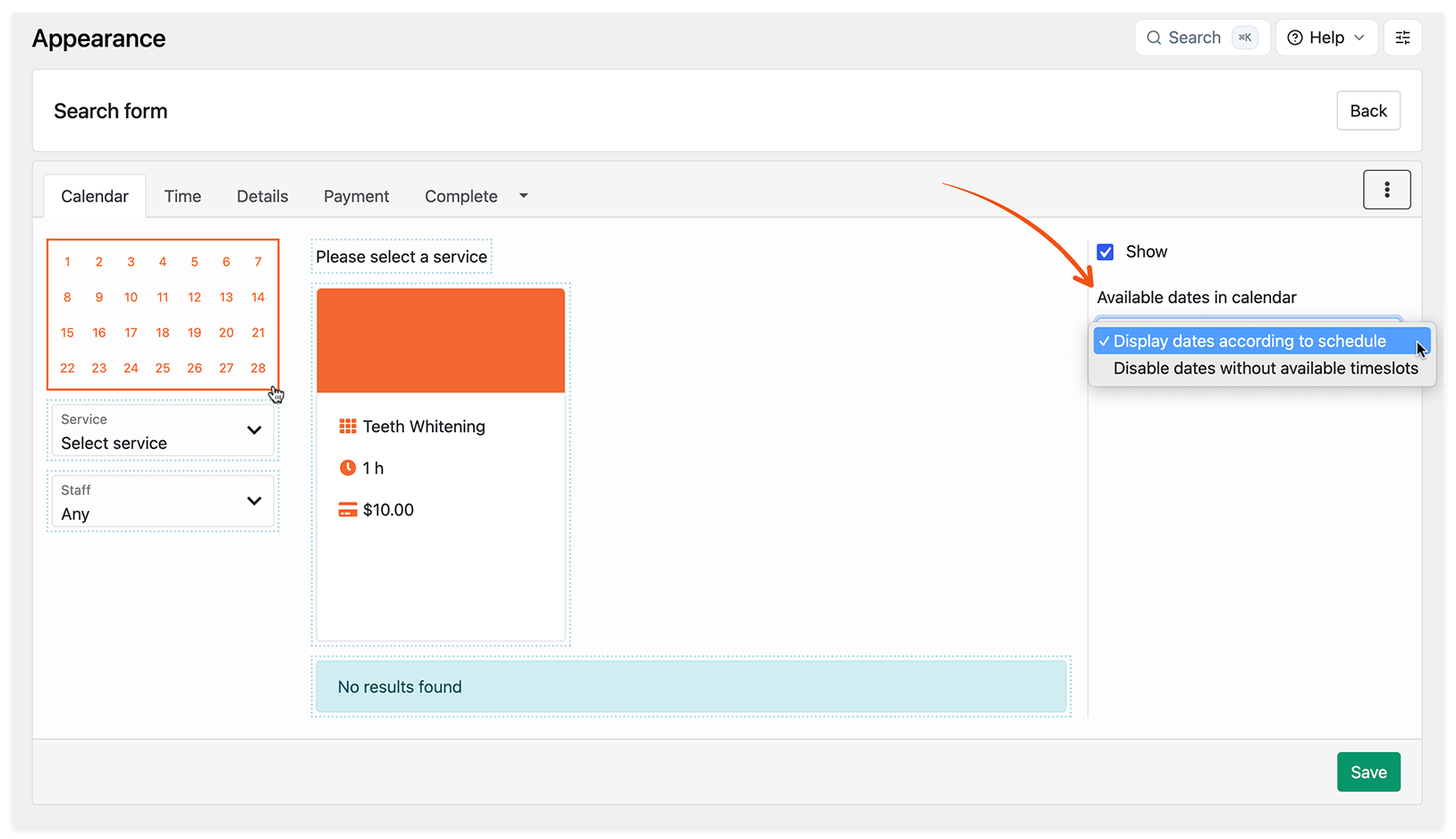
Section titled “Available dates in the calendar”Click the calendar area in the preview to choose how dates are displayed:
- Display dates according to schedule: shows staff working days, even if no available time slots remain on a day.
- Disable dates without available timeslots: greys out days with no available time slots. In this mode, loading time depends on the number of appointments, staff members, services, and locations.
Service card appearance and content
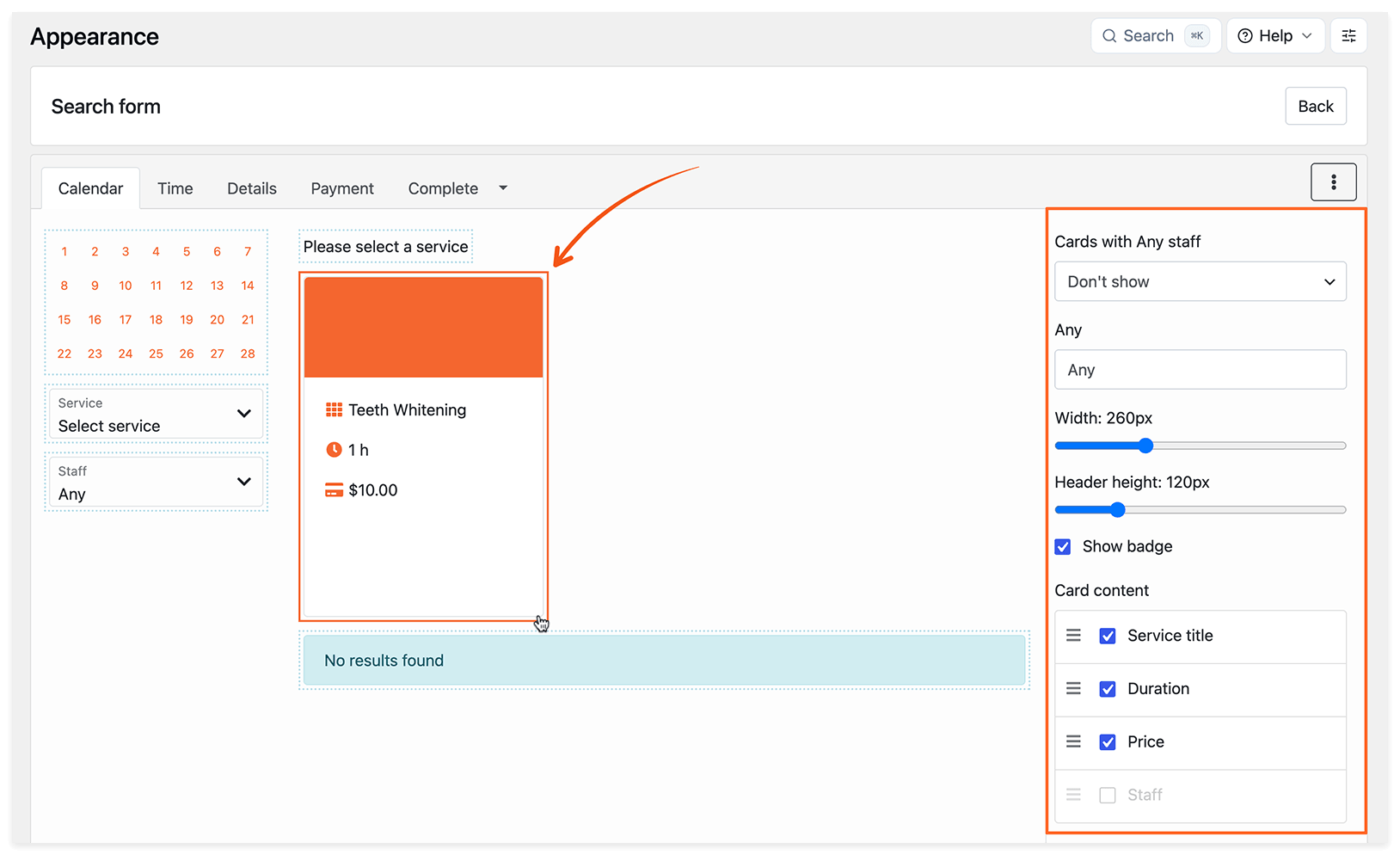
Section titled “Service card appearance and content”In the Search form, click a service card in the preview to customize it:
- Width: adjust the card width using the slider.
- Header height: adjust the height of the service image area.
- Show badge: display the staff member’s name at the top of the card.
- Card content: choose which properties to show and drag them into the order you want.
Hidden services
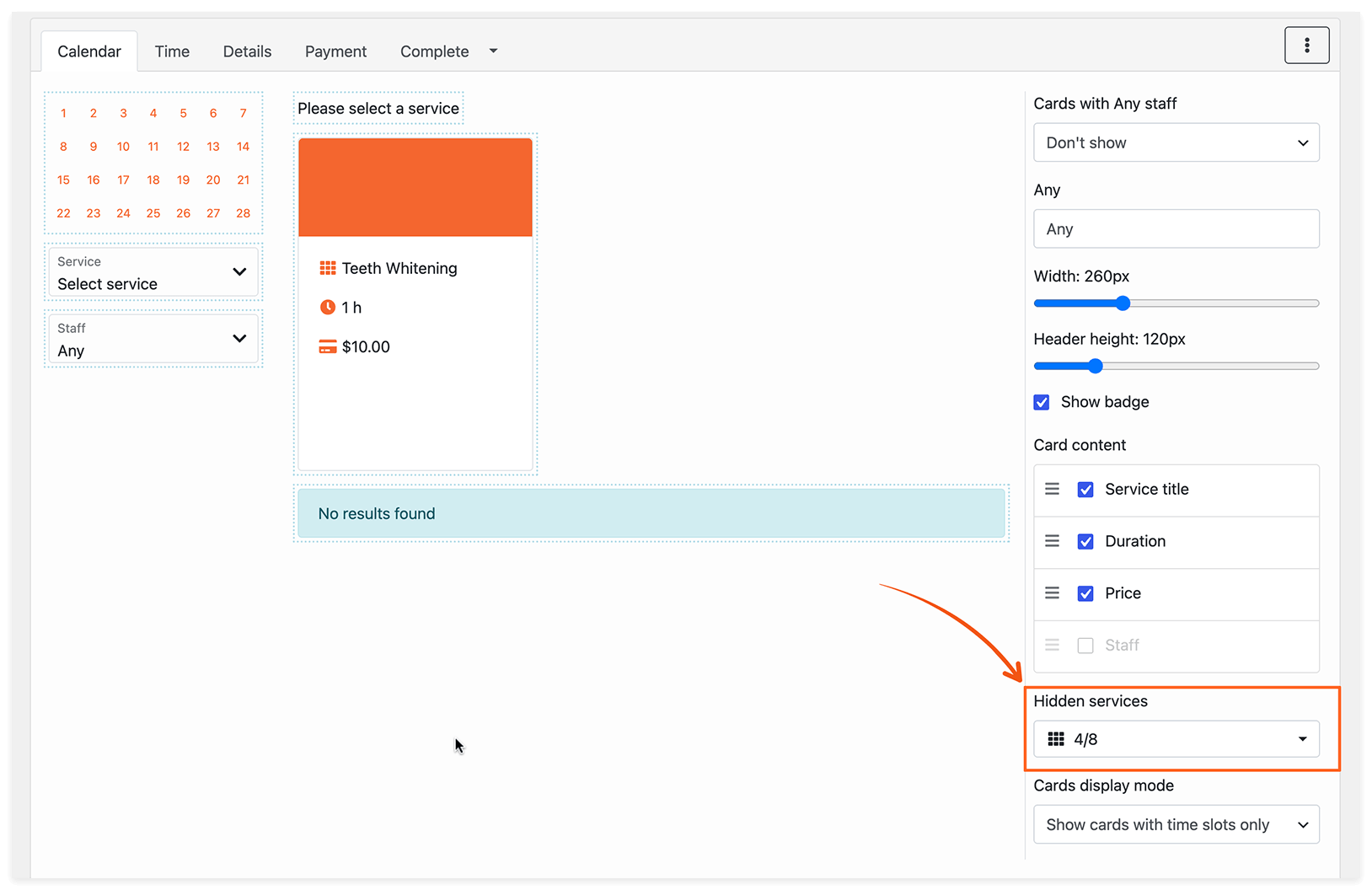
Section titled “Hidden services”In the Search form, click a service card and find Hidden services in the panel on the right. Select the services you want to hide from this form.
Cards display mode
Section titled “Cards display mode”In the same panel, Cards display mode controls which cards the Search form displays:
- Show cards with time slots only: shows only service, staff, and location combinations with available time slots for the selected day.
- Show all available cards: also shows cards without available time slots. For those cards, customers see a “No time slots available” message.
Add to calendar
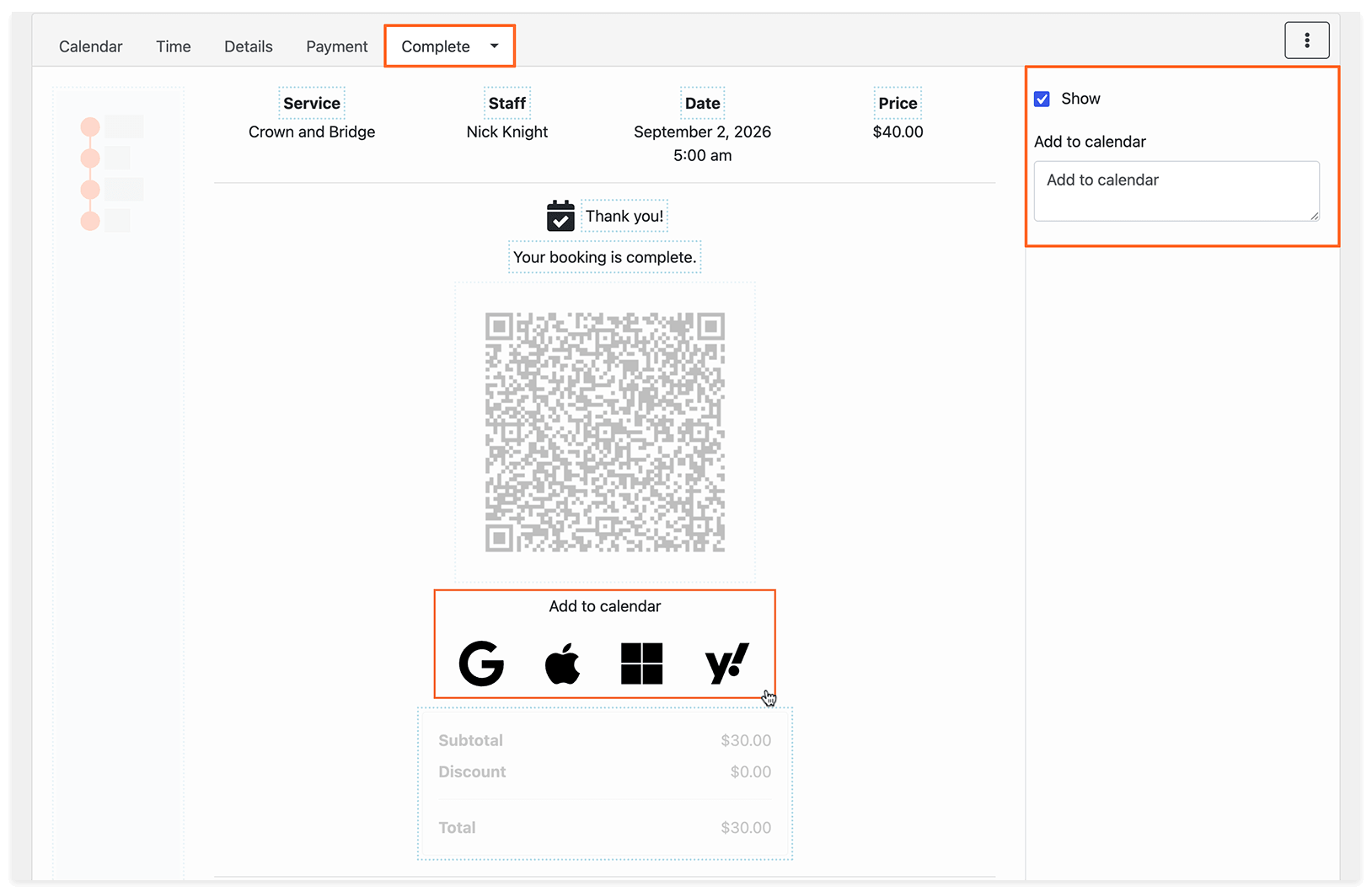
Section titled “Add to calendar”On the final step of the booking process, enable Add to calendar to let customers add their appointments to Google, Outlook, Apple, or Yahoo Calendar.
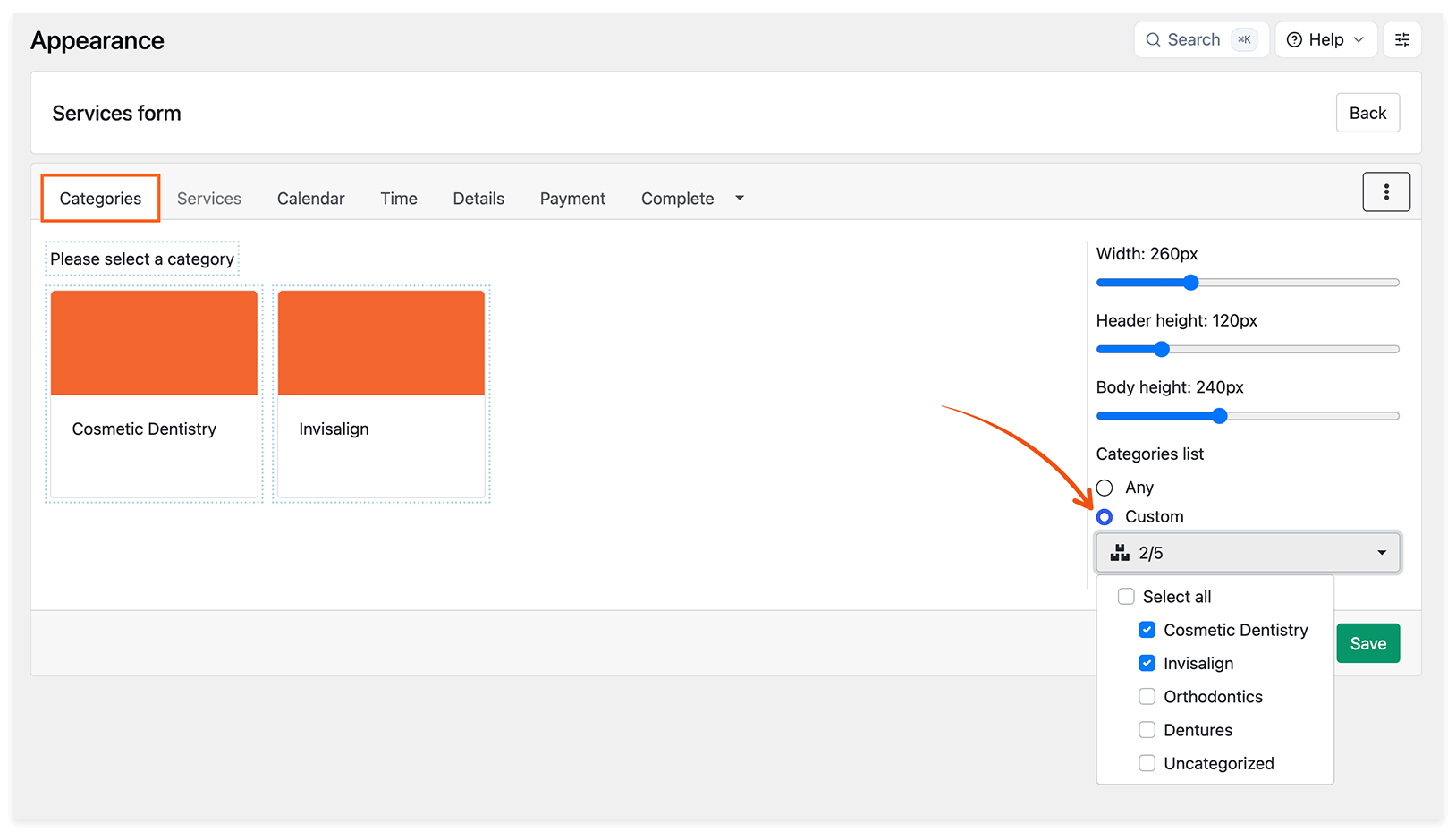
Category, staff or service-specific forms
Section titled “Category, staff or service-specific forms”For Services and Staff forms, you can choose which categories, services, or staff members customers see:
- Open the form in Bookly > Appearance.
- Select the relevant step and click a category, service, or staff card in the preview.
- In the panel on the right, select Custom and choose the items to display.
- Click Save.
Hide Categories or Services steps
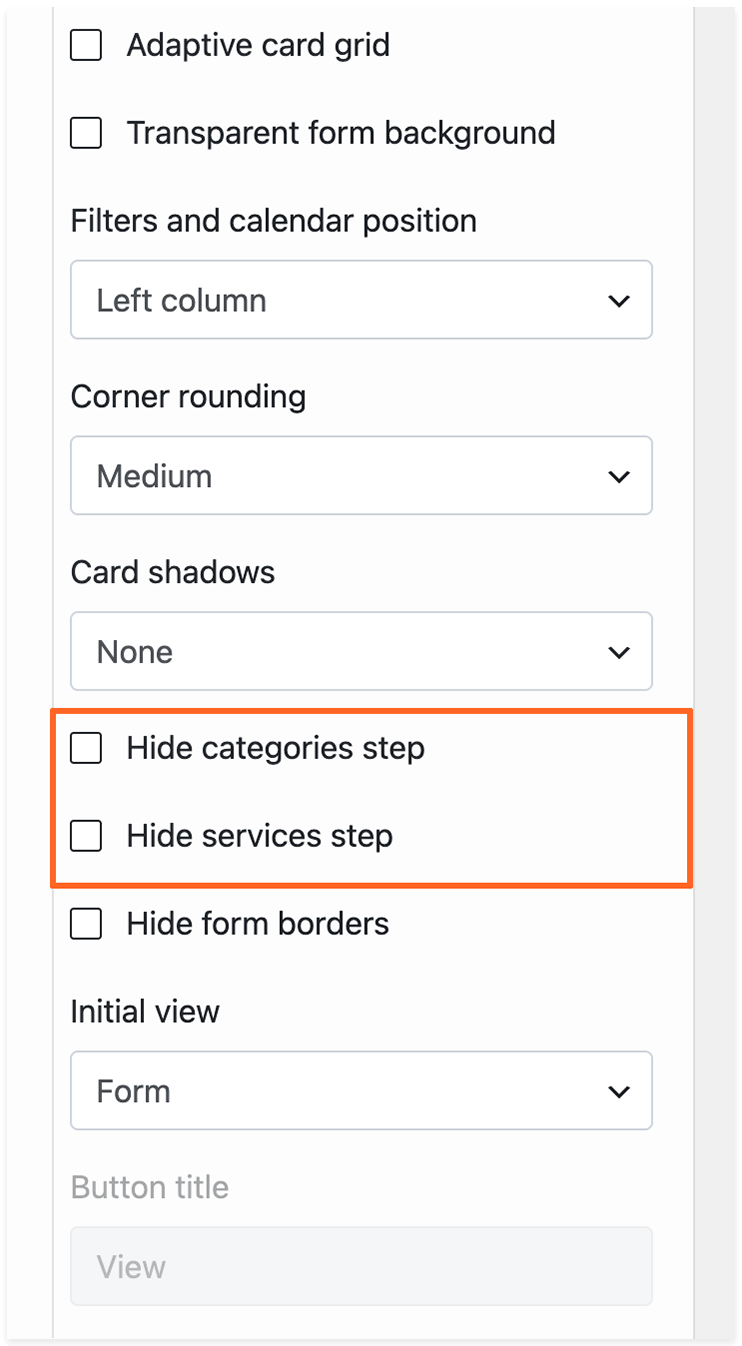
Section titled “Hide Categories or Services steps”For forms with these steps, open the three-dot menu and select Settings. Enable Hide categories step or Hide services step, as needed, then click Save.
Video tutorial: Services form
Section titled “Video tutorial: Services form”Watch how to set up a Services form:
Tags form
Section titled “Tags form”A Tags form lets customers narrow down the list of services through one or more filtering steps. Assign tags to your services in Bookly > Services, then choose which tags to offer in each step of the form.
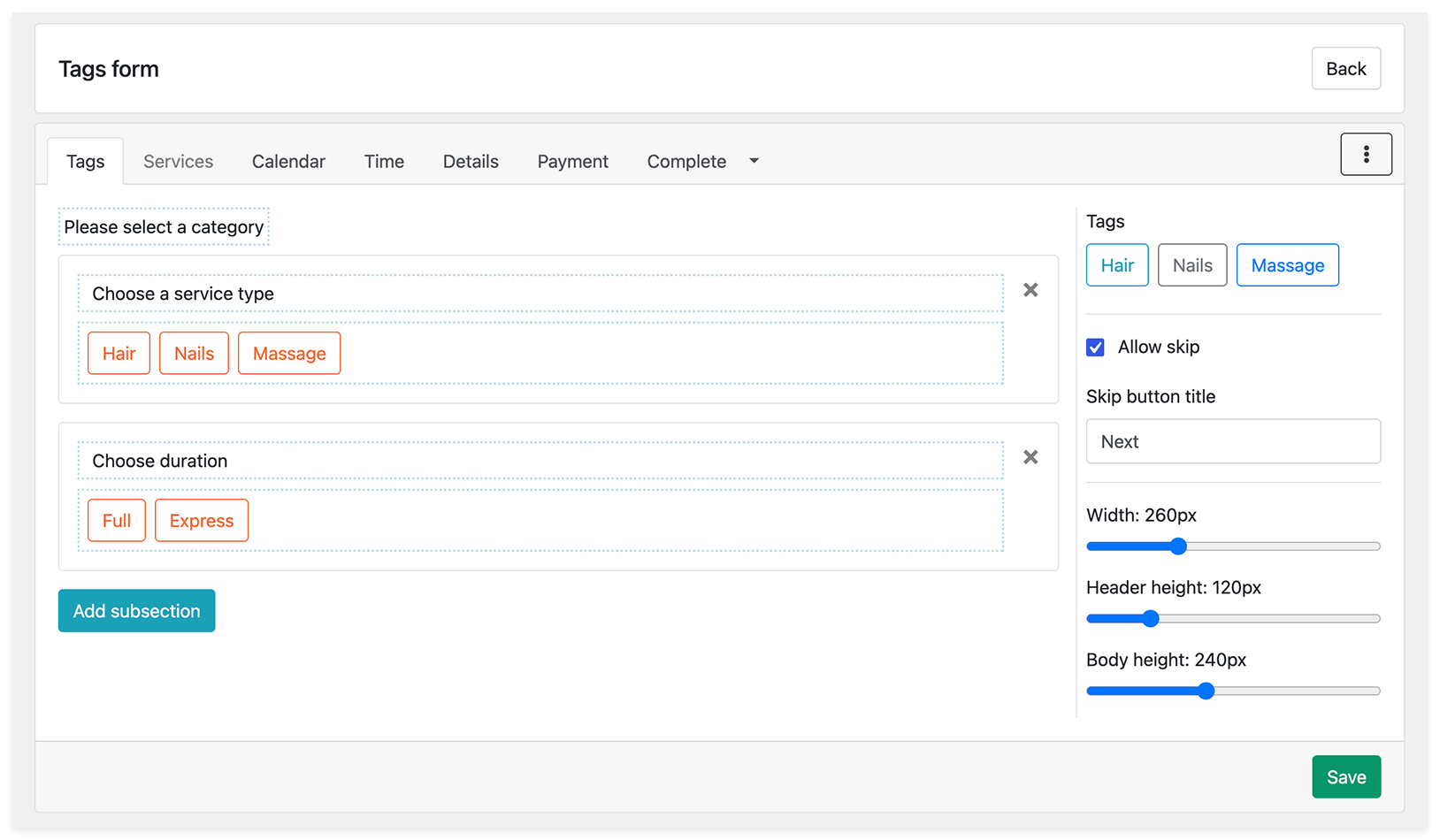
For example, you could offer Hair, Nails, and Massage in the first step, then Full and Express in the second. If a customer selects Massage and Express, the form shows only services with both tags.
These filtering steps are built from the tags you assign to services; they do not require you to create a matching category for every combination.
Create filtering steps
Section titled “Create filtering steps”- In Bookly > Appearance, choose Tags form and click Add new form.
- On the Tags tab, click Add subsection.
- Select the tags to display in this filtering step.
- Add more subsections if you need additional filtering steps. To remove a tag from a step, click it in the subsection.
- Click Save.
Main Settings
Section titled “Main Settings”Configure the following settings for your tag selection steps:
- Section title: the text shown to customers on the step.
- Allow skip: lets customers skip the tag selection step.
- Skip button title: the text on the skip button.
- Width / Header height / Body height: the size of the tag cards.
Configure each tag’s title, description, and image in Bookly > Services.
When the form is ready, save it and add its shortcode to a page.
Check your booking form
Section titled “Check your booking form”Before sharing the page with customers:
- Open it as a visitor and check the form on both a computer and a phone.
- Check that the intended services and staff members are shown, and that any hidden fields use the expected default values.
- Complete a test booking through to the final step.
- Check that the appointment appears correctly in Bookly Calendar.