Bookly 28.3: Payments Come to the AI Assistant Booking Form
Bookly 28.3 brings payments to conversational booking, adds more context for your AI Assistant, and introduces a customizable appointment preview in the admin area. Together with Bookly Pro 10.5, this release also adds WooCommerce as a separate payment method and new rescheduling options.
Book appointments through a conversation
Introduced in Bookly 28.1, the AI Assistant booking form gives visitors a new way to book on your website: through a chat.
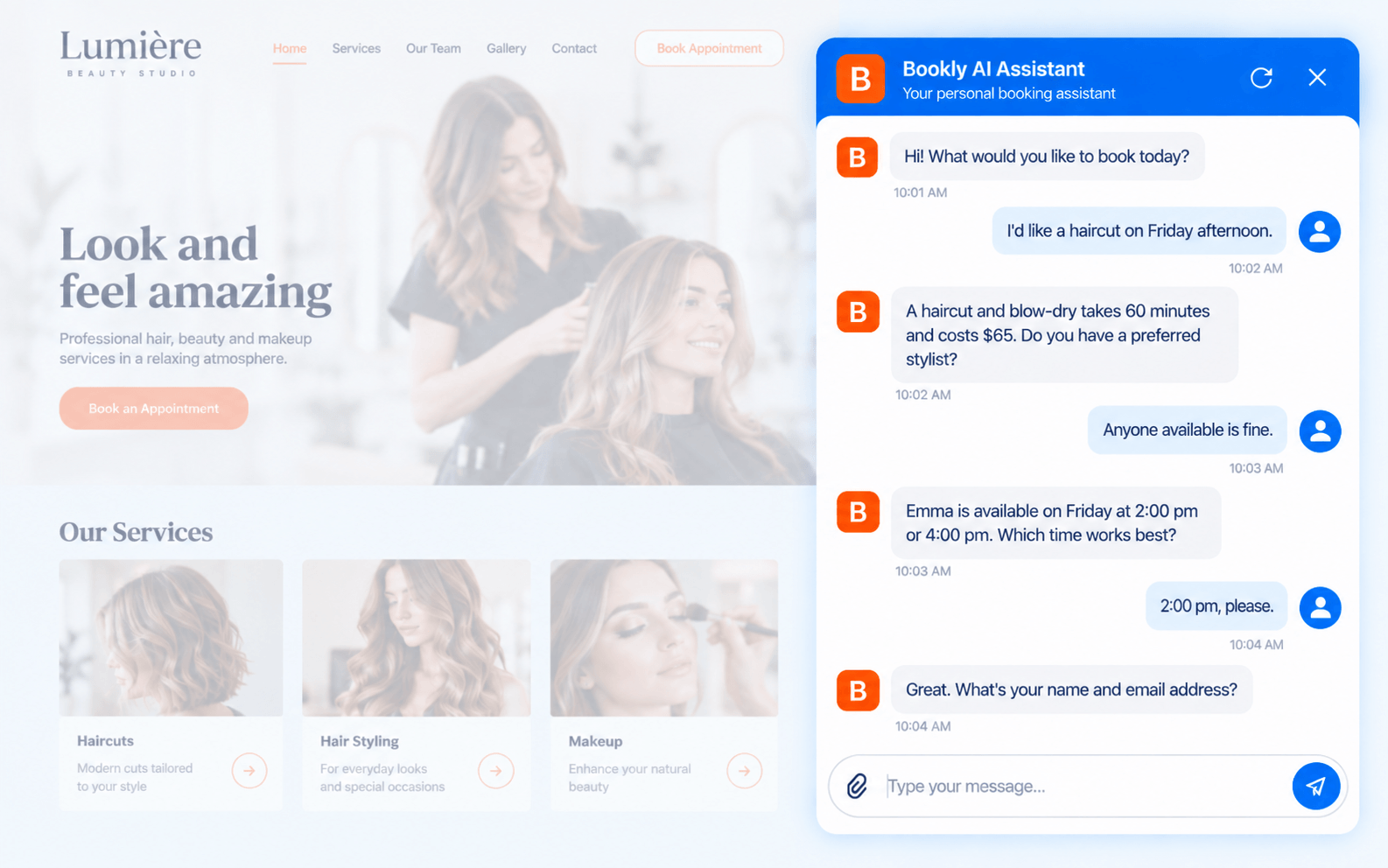
A customer can start with a request such as “I’d like to book a haircut on Tuesday.” The assistant guides them through choosing a service, finding an available time, and providing the details needed to create an appointment.
For businesses, this offers another way to welcome visitors who are ready to book or need help exploring their options. The familiar Bookly booking forms remain available, so you can choose the experience that suits your website and customers.
New in 28.3: payments and a more personalized assistant
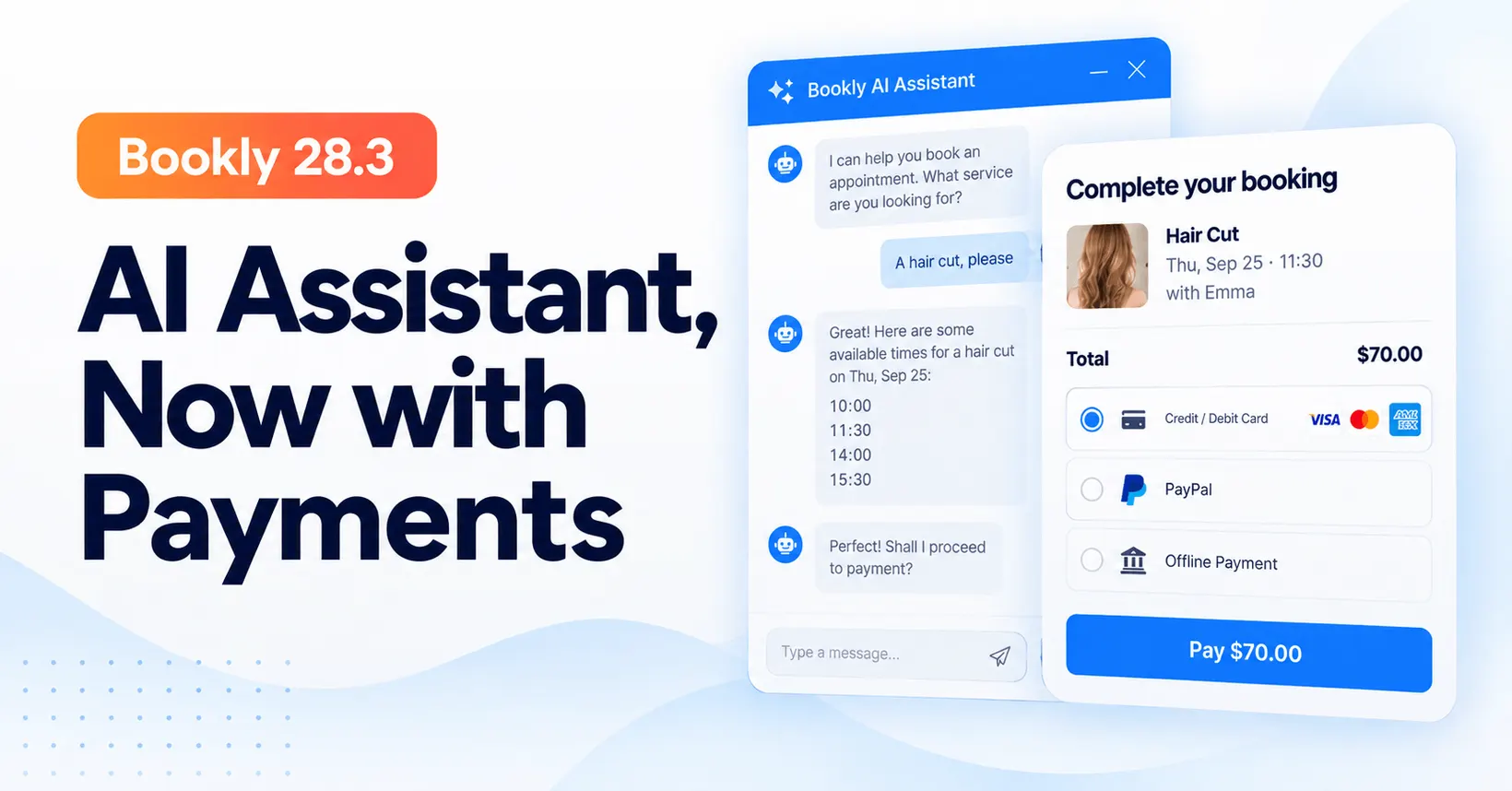
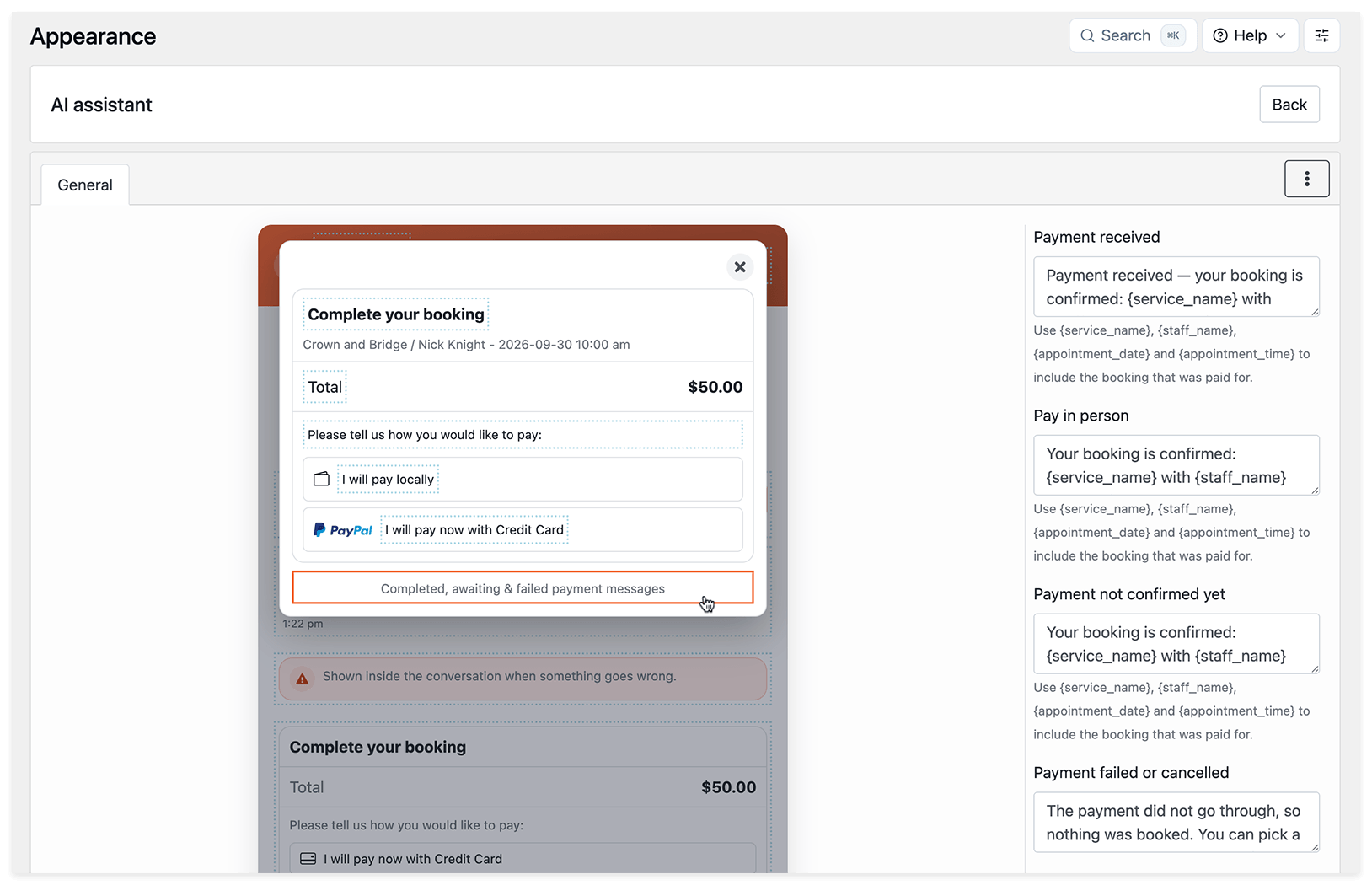
Customers can now pay for appointments through the AI Assistant booking form. They can review their booking and total, then choose from the payment options you have enabled, including paying in person.
You can customize the payment labels and messages customers see when a payment is received, awaiting confirmation, or failed or cancelled, as well as when they choose to pay in person. Include booking details such as the service, staff member, date, and time using placeholders.
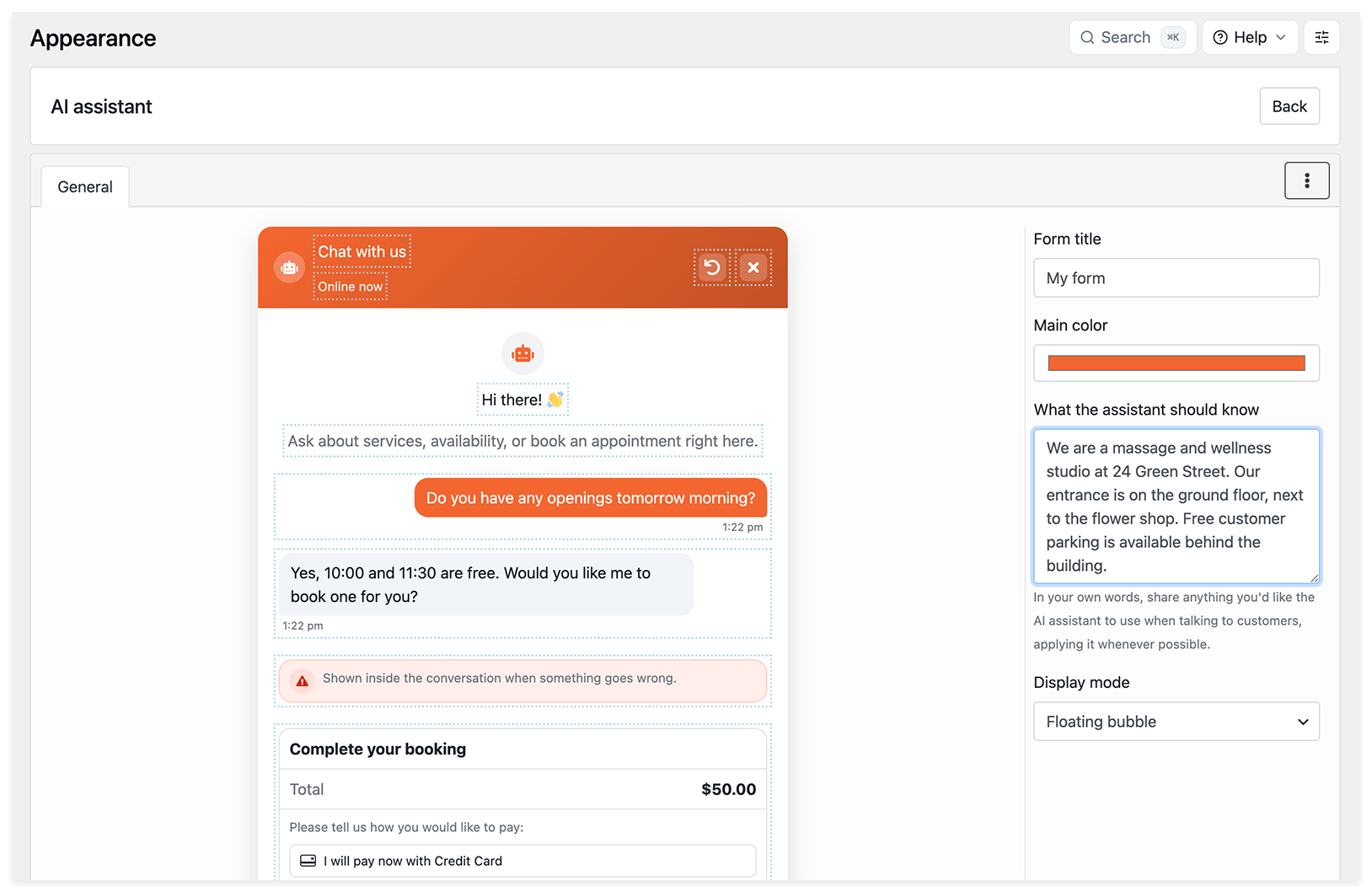
The new What the assistant should know field lets you describe your business and share additional information you want the assistant to use in conversations. For example, you could add arrival instructions or useful details about your services to help it give customers more relevant guidance.
This release also improves time slot search to help customers find a suitable appointment.
To try the form, activate AI Assistant in your Bookly Cloud account, then go to Bookly → Appearance → AI Assistant to configure the widget and add its shortcode to your website.
Offer WooCommerce as a separate payment method
Bookly Pro 10.5 lets you offer WooCommerce as a separate payment method in your booking form. This option is also available in the AI Assistant booking form.
If you already use WooCommerce on your website, you now have more flexibility in how you offer it for appointment payments, including bookings made through the assistant.
Preview and manage appointments in the admin area
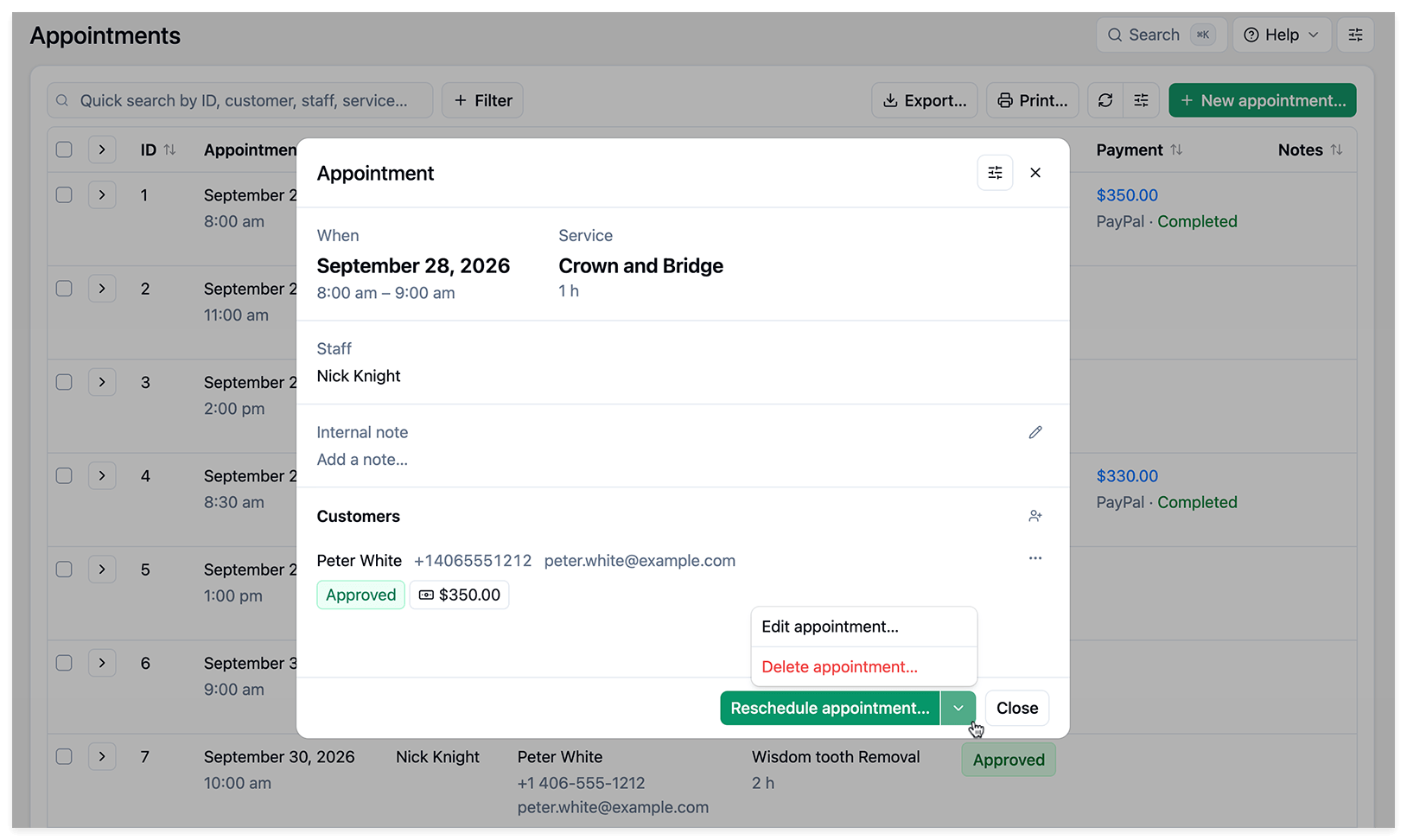
The new appointment preview brings key booking details together in one window: the date and time, service and duration, assigned staff member, internal notes, and customer contact details and booking status.
From this window, you can add an internal note, attach a payment, or access options to reschedule, edit, or delete the appointment. It puts the information and actions you need close at hand when reviewing your schedule or responding to a customer.
You can also tailor the preview to your workflow. Open Card settings to choose which optional details appear, rearrange sections and fields, show or hide section titles, and enable compact rows. A live preview shows how your choices will look before you save them.
To use the new preview, go to Bookly → Settings → Appointments and enable Use the booking wizard. The wizard opens when you click New appointment, an empty calendar slot, or an existing appointment, letting you create, view, and reschedule bookings. Keep this setting disabled if you prefer the classic appointment form.
Reschedule collaborative and compound services
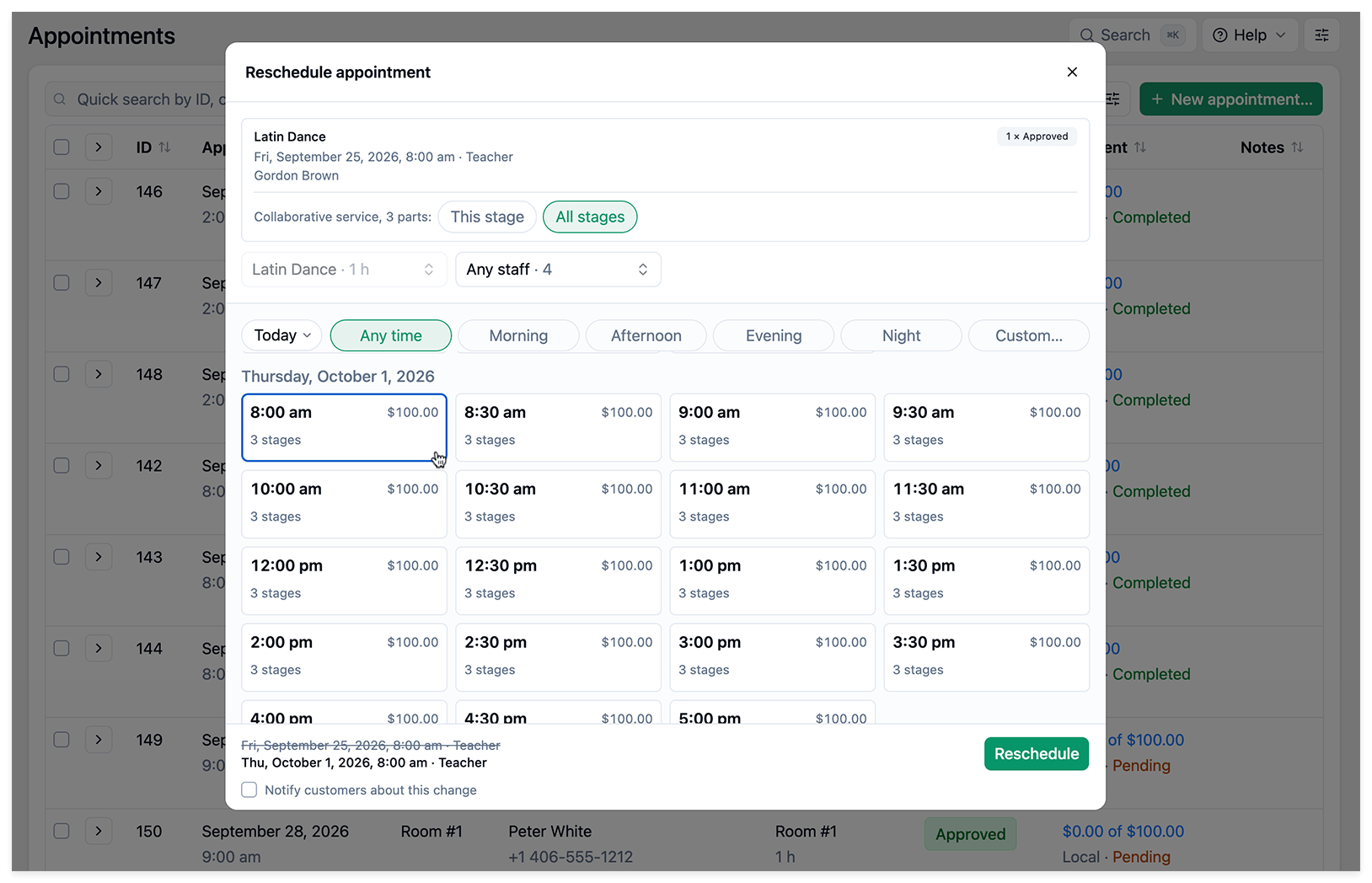
Using the Collaborative Services or Compound Services add-ons? You can now reschedule these appointments from the backend.
This extends admin rescheduling to bookings involving collaborative or compound services, giving your team more flexibility when a customer’s plans change.
Update to Bookly 28.3 and Bookly Pro 10.5 to explore the new features. For the new rescheduling options, update the corresponding Collaborative Services or Compound Services add-on as well.