
Create an SMS Campaign
Use campaigns to send bulk SMS messages to your customers. Before you start, top up your Bookly Cloud balance.
Step 1: Choose your audience
Section titled “Step 1: Choose your audience”-
Go to SMS Notifications > Campaigns.
-
Click New campaign….
-
Under Who should get this message?, select an audience:
- Haven’t visited in a while — past customers you want to bring back for another appointment.
- Came once and didn’t return — first-time customers who have not returned.
- Cancelled and didn’t rebook — customers who cancelled and have not booked again.
- Regular gone quiet — regular customers who have not visited as often as usual.
- Top spenders — your highest-spending customers.
- Birthday coming up — customers with an upcoming birthday.
- Booked for a period — customers with bookings during a specific period.
- All customers — everyone in your customer list who has a phone number.
- Your own list — filter customers and add phone numbers manually. Your list is saved for future campaigns.
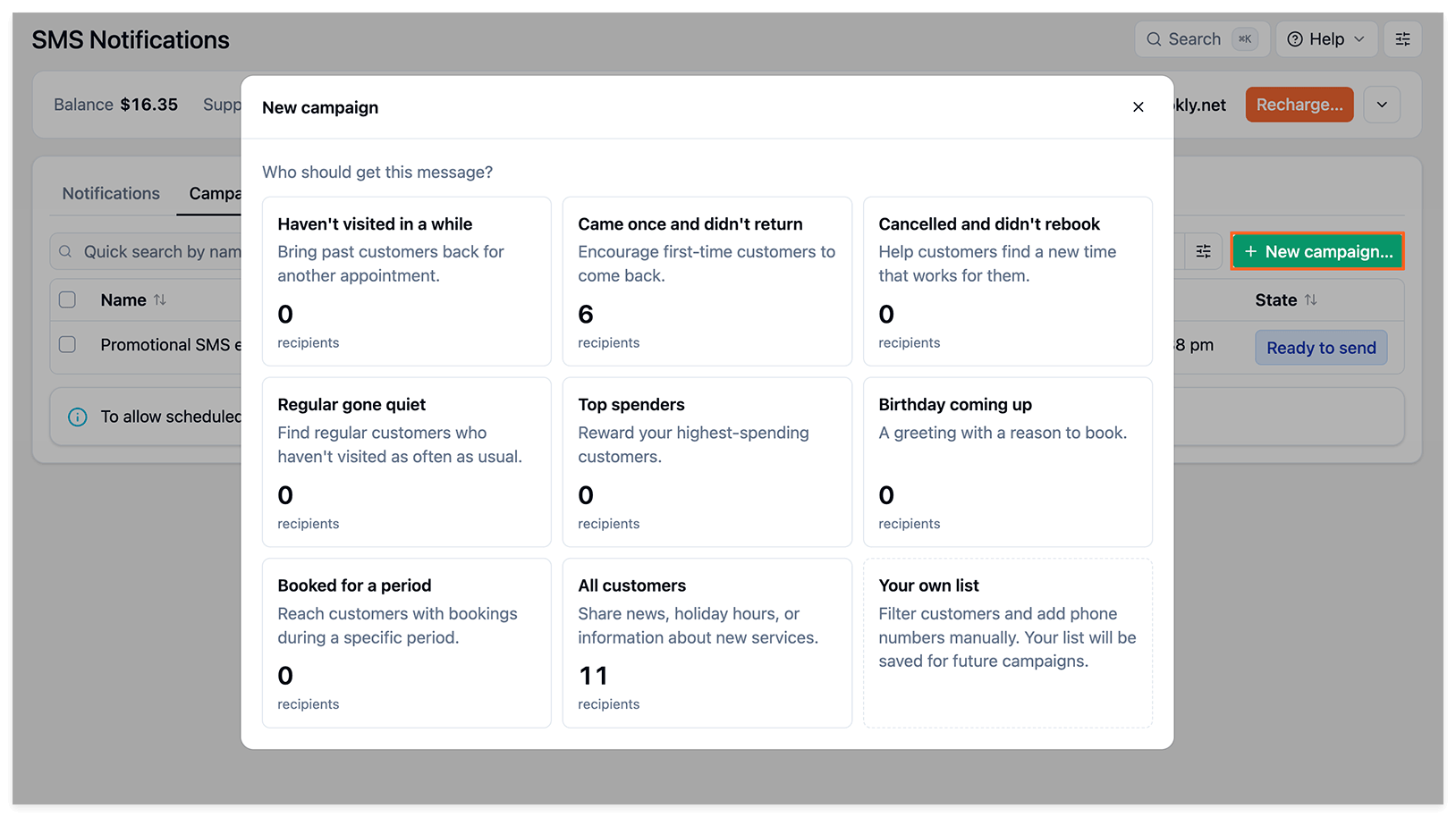
- Review the selected audience and recipient count. Click Show recipients to see who is included, then click Continue.
Create your own list
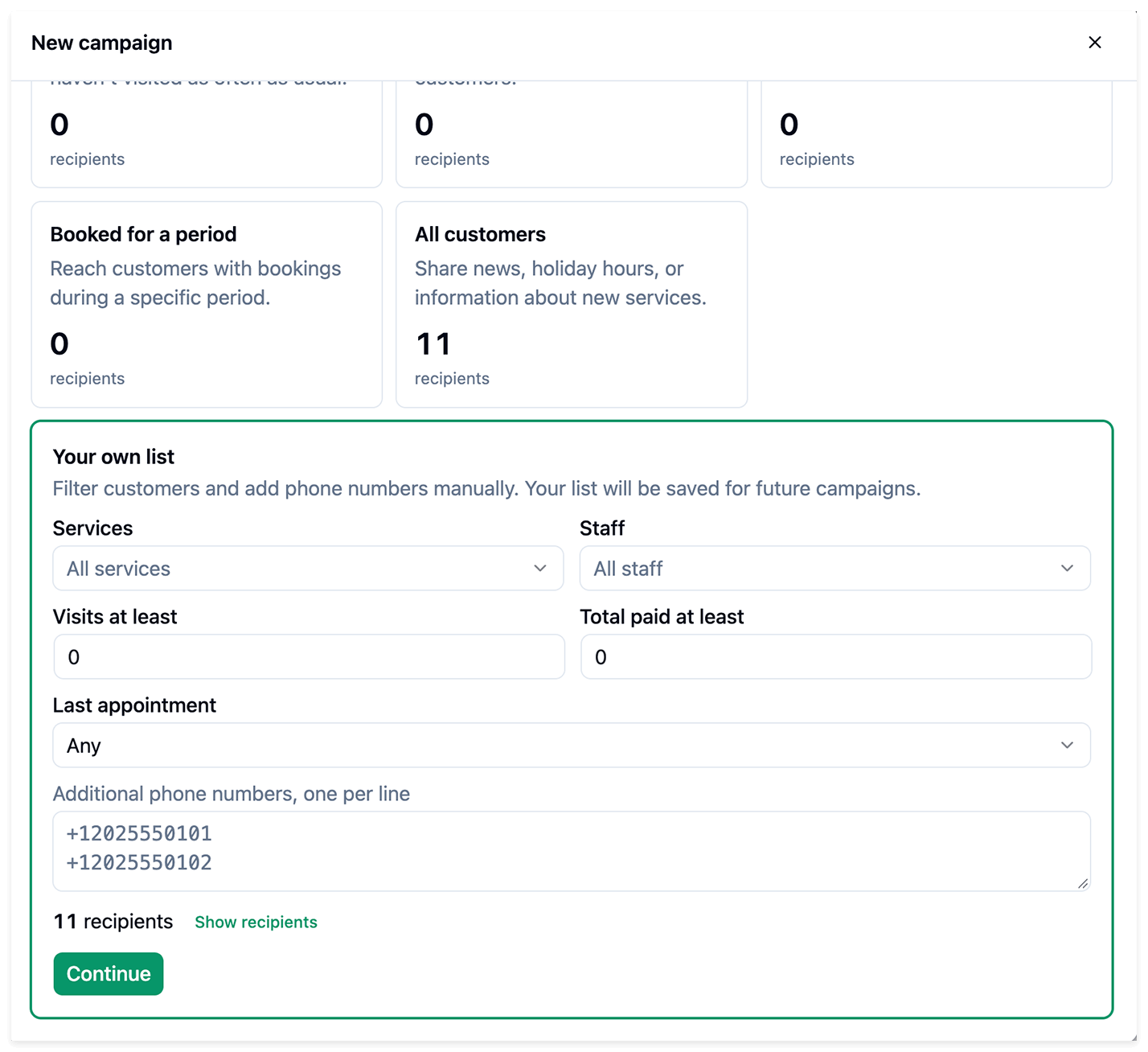
Section titled “Create your own list”If you select Your own list, use the filters to choose customers:
- Services and Staff — select services and staff members, or leave All services and All staff selected.
- Visits at least — set the minimum number of visits.
- Total paid at least — set the minimum total amount paid.
- Last appointment — choose a condition for the customer’s last appointment, or leave Any selected.
To include additional recipients, enter their phone numbers in international format in Additional phone numbers, one per line.
Review the recipient count and click Show recipients to check the list. Click Continue to proceed. Your list is saved for future campaigns.
Step 2: Set up your message
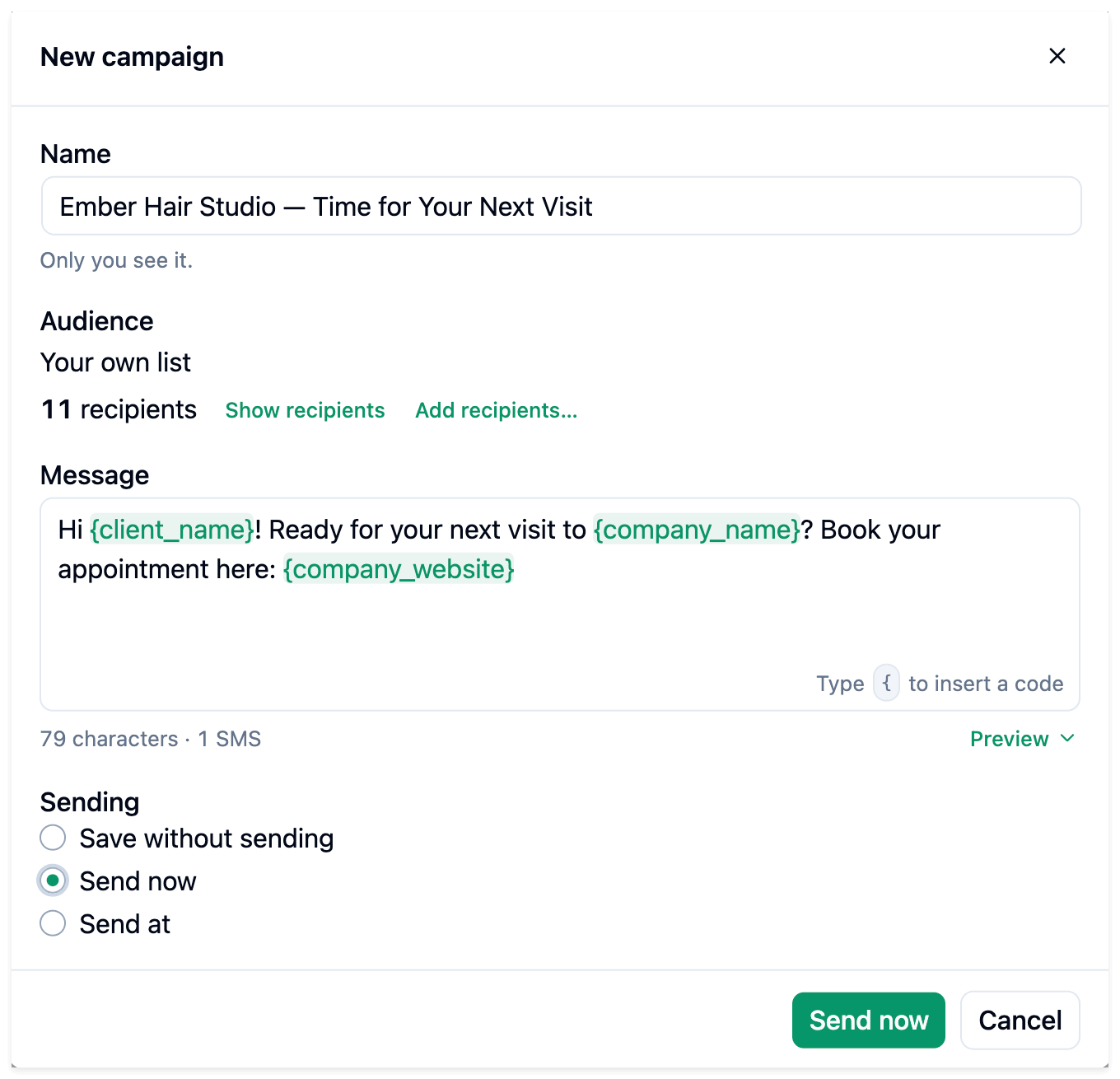
Section titled “Step 2: Set up your message”- Review the Name and change it if needed. This name is only visible to you.
- Check the Audience. Use Show recipients to review the list or Add recipients… to add recipients.
- Enter your text in Message. Type
{to insert a placeholder. - Check the character and SMS counts below the message, and use Preview to review it.
Example message:
Hi {client_name}! Ready for your next visit to {company_name}? Book your appointment here: {company_website}
Step 3: Save or send your campaign
Section titled “Step 3: Save or send your campaign”Under Sending, choose an option:
- Save without sending — click Save campaign to save it for later.
- Send now — send the campaign immediately.
- Send at — choose a Date and time, then click Schedule.
Scheduled campaigns require Bookly Cloud Cron or a configured cron job.
Campaigns use your WordPress timezone.
Step 4: Check campaign results
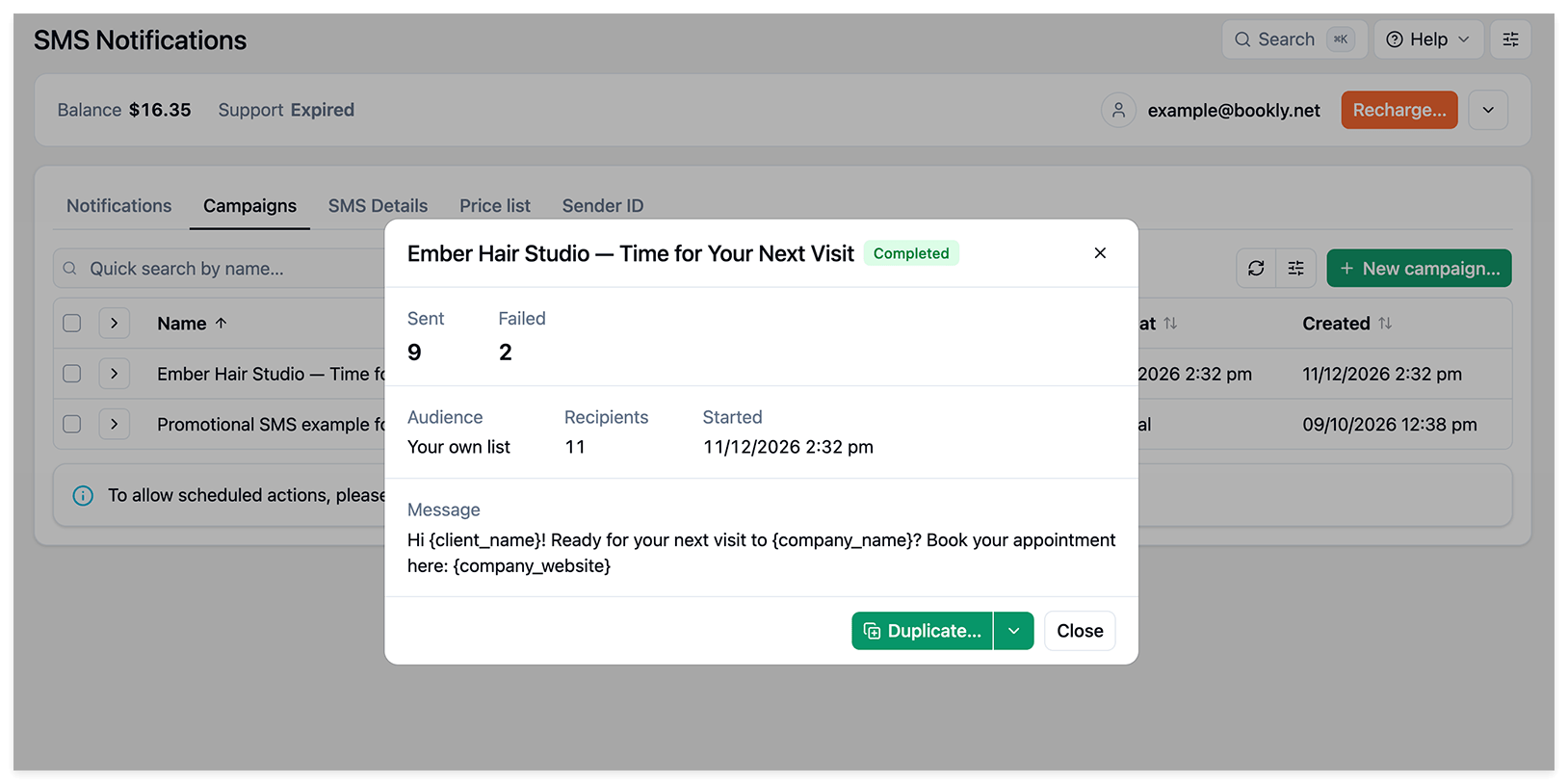
Section titled “Step 4: Check campaign results”Return to Campaigns to check the Recipients and Sent counts. Open the campaign to view its status, audience, recipient count, start time, and message.
A finished campaign is marked Completed.
View the status of each message in the SMS Details tab.